Wow! Emoji of happy man Full-featured sandbox for developers — free forever! Register Now
Use case — WhatsApp LID to phone number

Resolve WhatsApp @lid to a phone number

WhatsApp may send a @lid instead of a phone number — in API responses, webhooks, group exports, or CRM fields. Your stack still needs a normal number. Whapi.Cloud API fixes that: link WhatsApp once, then resolve @lid with GET /contacts/ids/{ContactLID} — with clear limits when lookup is not ready yet.

Ban-safe lookup Free Sandbox
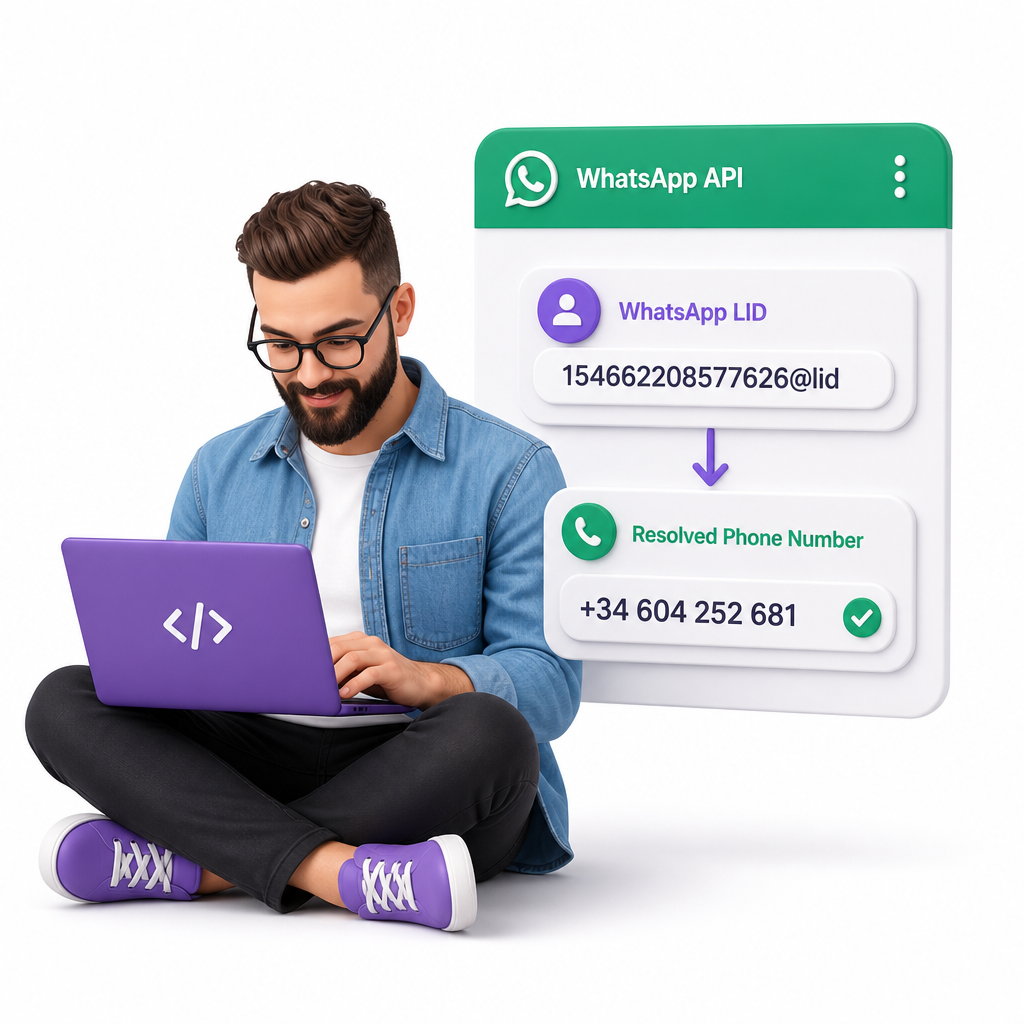
WhatsApp LID to phone number use case
Decorartive bubble
Link WhatsApp once — your channel stores the @lid ↔ phone data

Get started in 3 steps

Register and pair WhatsApp via QR

Pair your number via QR

Register free, open your Sandbox channel, and scan the QR code like WhatsApp Web. Your channel collects @lid ↔ phone mappings from traffic.

Copy API token

Get your API token

Copy your channel Bearer token and explore the REST API in curl, Postman, or Swagger — before your first LID lookup.

Call getIdByLid API

Resolve @lid to a phone number

Call GET /contacts/ids/{ContactLID} with the @lid from a message, webhook, or API response. Authorize with your Bearer token.

Use case overview

Turn @lid into a phone number your tools understand

WhatsApp may hand you a Linked ID (@lid) where your CRM, scripts, or automations expect a phone number. Your linked WhatsApp is the channel that collects @lid ↔ phone mappings from normal traffic. Whapi resolves @lid to a full number when that channel already has the mapping — and returns a clear HTTP 404 when it does not, so you can store @lid and try again later — the phone may appear in your channel data.

  • Get a full phone number when your channel already knows that contact

  • One GET — searches your channel cache only, no new WhatsApp request

  • HTTP 404 — store @lid; try again later — the mapping may show up over time

Open Sandbox — start resolving
What you get

One API call: @lid → phone

154662208577626@lidGET /contacts/ids/{ContactLID}[email protected]

Request (curl)

curl --request GET \
  --url "https://gate.whapi.cloud/contacts/ids/154662208577626%40lid" \
  --header "authorization: Bearer <CHANNEL_TOKEN>"

HTTP 200

{
  "id": "[email protected]"
}

HTTP 404

{
  "error": "User not found"
}
After you receive @lid

Phone or @lid — both work

Unlike browser-emulation libraries, Whapi runs on a socket connection to your linked WhatsApp account. Lookup searches data your channel already collected from messages, groups, and other traffic on that session. A 404 does not mean your integration failed — WhatsApp simply has not shared that phone with your session yet.

1

Spot @lid in a webhook, group export, or CRM field — that is your lookup input.

2

Call getIdByLid on the same channel that received the original traffic.

3

HTTP 200 — you get the full WhatsApp chat ID (e.g. [email protected]) — merge it into your existing customer row.

4

HTTP 404 — store @lid as your primary key. Whapi lets you keep messaging and automating with @lid until a phone appears in channel data.

Safe for production numbers

  • No messages sent, no contact pings — each lookup reads cache data only
  • No new requests to WhatsApp per GET — nothing extra for anti-spam to flag

BSUID and @lid work the same way — similar privacy identifiers, different format. This lookup applies to both. Learn about BSUID

Resolve @lid in any programming language

curl --request GET \
     --url https://gate.whapi.cloud/contacts/ids/154662208577626%40lid \
     --header 'accept: application/json' \
     --header 'authorization: Bearer {your_token}'
$curl = curl_init();

curl_setopt_array($curl, [
  CURLOPT_URL => "https://gate.whapi.cloud/contacts/ids/154662208577626%40lid",
  CURLOPT_RETURNTRANSFER => true,
  CURLOPT_ENCODING => "",
  CURLOPT_MAXREDIRS => 10,
  CURLOPT_TIMEOUT => 30,
  CURLOPT_HTTP_VERSION => CURL_HTTP_VERSION_1_1,
  CURLOPT_CUSTOMREQUEST => "GET",
  CURLOPT_HTTPHEADER => [
    "accept: application/json",
    "authorization: Bearer {your_token}"
  ],
]);

$response = curl_exec($curl);
$err = curl_error($curl);

curl_close($curl);

if ($err) {
  echo "cURL Error #:" . $err;
} else {
  echo $response;
}
import requests

url = "https://gate.whapi.cloud/contacts/ids/154662208577626%40lid"

headers = {
    "accept": "application/json",
    "authorization": "Bearer {your_token}"
}

response = requests.get(url, headers=headers)

print(response.text)
const url = 'https://gate.whapi.cloud/contacts/ids/154662208577626%40lid';

const response = await fetch(url, {
  method: 'GET',
  headers: {
    accept: 'application/json',
    authorization: 'Bearer {your_token}',
  },
});

console.log(await response.text());
OkHttpClient client = new OkHttpClient();

Request request = new Request.Builder()
  .url("https://gate.whapi.cloud/contacts/ids/154662208577626%40lid")
  .get()
  .addHeader("accept", "application/json")
  .addHeader("authorization", "Bearer {your_token}")
  .build();

Response response = client.newCall(request).execute();
using RestSharp;

var options = new RestClientOptions("https://gate.whapi.cloud/contacts/ids/154662208577626%40lid");
var client = new RestClient(options);
var request = new RestRequest("");
request.AddHeader("accept", "application/json");
request.AddHeader("Authorization", "Bearer {your_token}");
var response = await client.GetAsync(request);

Console.WriteLine("{0}", response.Content);
Two-way lookup

Start from @lid or from phone

Use whichever identifier your webhook or CRM already has — same Bearer token, same channel cache.

You have @lid → need phone

GET /contacts/ids/{ContactLID} (getIdByLid)

Webhook, group export, or CRM row stores @lid — merge into phone-based CRM records

You have phone → need @lid

GET /contacts/lids/{ContactID} (getLidById)

Outbound API expects @lid, but your CRM only has the phone number. Use sparingly: getLidById may contact WhatsApp — unlike cache-only getIdByLid. Add pauses between calls.

Pick the endpoint that matches your input — build both directions over time on the same channel.

Why it matters

One contact in your CRM — even without the phone

When WhatsApp sends @lid instead of a phone number, CRMs often create duplicates and lose history. Resolve the identifier programmatically and merge into the existing row.

Before

Payload has 154662208577626@lid — CRM opens a new contact.

After

API returns 34604252681 — CRM updates the same customer record.

  • Match @lid to phone-based records in CRM or support tools

  • Build phone ↔ @lid maps on your linked channel for the next lookup

  • Keep orders and support history on one customer

CRM workflow with WhatsApp LID resolution
FAQ

Common questions about LID resolution

No. Resolution depends on whether your connected channel already has phone data for that @lid. If the API returns HTTP 404, keep using @lid as the primary key and try lookup again later — the phone may appear as WhatsApp shares it with your session. Do not poll on a timer.
No. Each lookup searches data your linked channel already received from WhatsApp — messages, groups, and webhooks on that session. GET /contacts/ids/{ContactLID} does not send messages, place new requests to WhatsApp, or fetch information WhatsApp has not already shared with your number. There is no extra traffic for WhatsApp to analyze, so this endpoint is safe for production numbers.
Use GET https://gate.whapi.cloud/contacts/ids/{ContactLID} (operationId: getIdByLid). Authenticate with your channel Bearer token. Encode @ in the URL as %40.
This page covers the standard @lid pattern from API responses, webhooks, and group payloads. Some edge-case identifiers need different integration paths — see our developer guide for advanced scenarios.
Store the @lid, continue messaging via @lid if needed, and try the lookup again later. There is no fixed wait time. Do not assume every community or group @lid can be reverse-resolved.
Register free at panel.whapi.cloud, create a channel, scan the QR code to link your WhatsApp number, copy your channel token, then call GET /contacts/ids/{ContactLID} with Bearer authorization. Linking WhatsApp creates the channel whose data the lookup searches.
Your linked WhatsApp is the API channel. Whapi stores @lid ↔ phone mappings from traffic on that session — messages, groups, webhooks. Without a connected channel there is nothing to search. Pairing via QR is setup, not a lookup itself; once linked, call GET /contacts/ids/{ContactLID} against that channel's data.