Skip the boilerplate: clone a working bot
This guide uses the open-source bot from the Whapi.Cloud GitHub repository. It covers sending and receiving messages, media, contacts, products and groups out of the box. The rest of the article explains how to launch it.
The script of this chatbot includes basic functions that are often used by small and medium businesses and covers most tasks:
- Sending a plain message;
- Sending media: image / file / video;
- Sending a contact (vCard);
- Sending a product;
- Creating a WhatsApp group;
- Sending a group invitation;
- Sending a message to a WhatsApp group;
- Receiving and processing incoming messages;
- Responding to an unknown command (for implementing menus, instructions, or a welcome message).
git clone https://github.com/Whapi-Cloud/nodejs-whatsapp-chatbot
After cloning, enter the project folder:
cd nodejs-whatsapp-chatbot
Install the packages listed in
package.json:
npm install
This downloads the dependencies the chatbot needs to run.
Project structure
- /files — sample media the bot can send (image, PDF, video, vCard). Replace them when you want.
- config.js —
token,botUrl,port, and optionalgroup/productIDs. - index.js — registers the webhook, listens on
/hook/messages, and maps numbers 1–9 to actions.
Connect your WhatsApp number
Whapi.Cloud is an HTTP gateway for WhatsApp independent of Meta. You can use any existing WhatsApp number, scan a QR code in the dashboard, and get a Bearer token. There is no Meta Business verification and no Cloud API template or messaging-window limits.
For the bot to work it is not required that the phone stays online. Connect your number once through the dashboard and run the bot on any server. If you need help, use the support chat on the site.
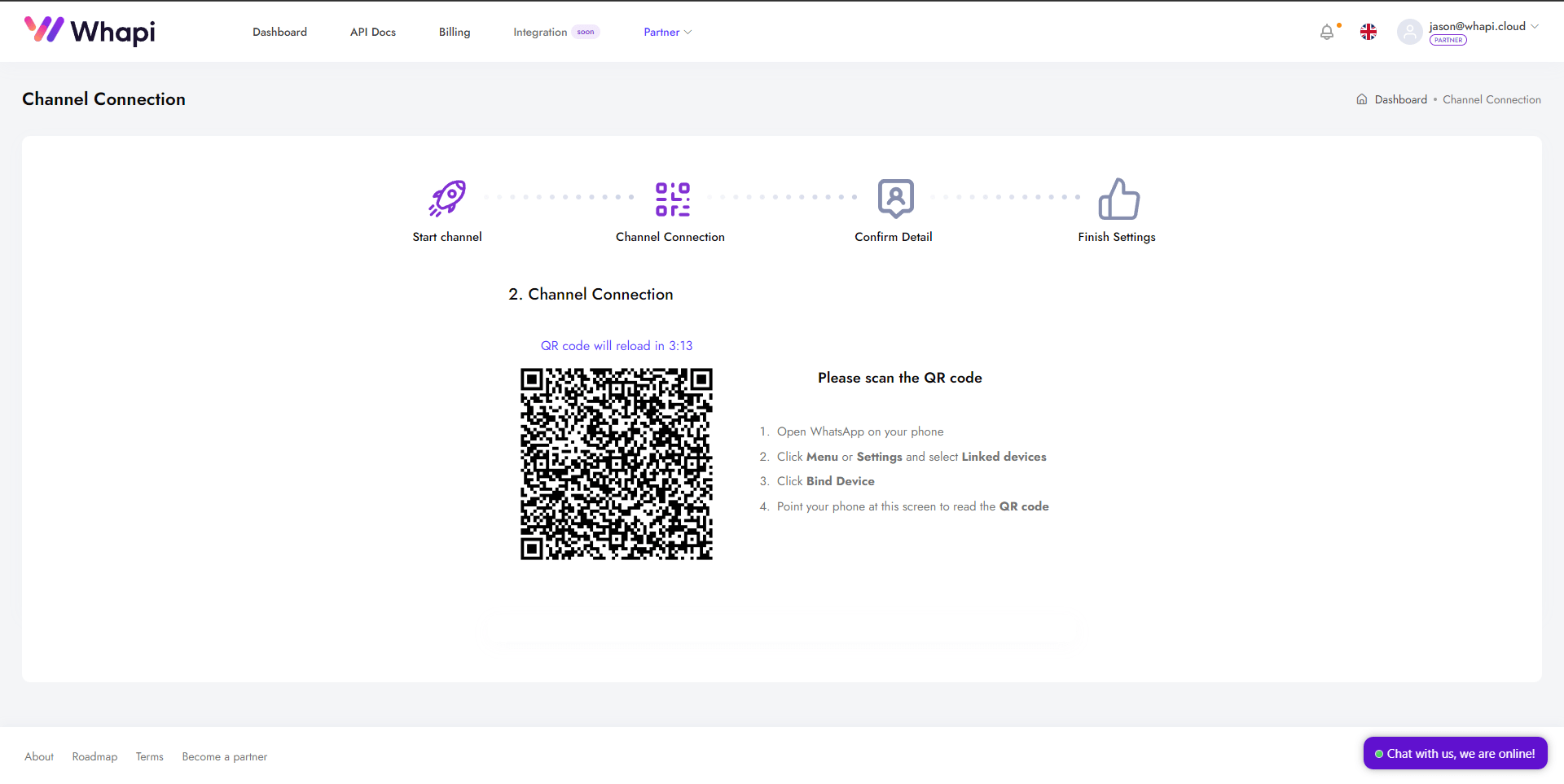
Scan the QR code in your account
Registration. The first step is to register on the Whapi.Cloud website and create an account. It's free and doesn't require you to enter a credit card.

After registration you will immediately have access to a test channel with a small limitation. Wait for it to start (it usually takes about a minute). You will need to connect your phone for Whatsapp automation. It is from the connected phone that messages will be sent. The big advantage of the service is that it takes only a couple of minutes to launch and start working.
To connect your phone, use the QR code available when you click on your trial channel in your personal account. Then open WhatsApp on your mobile device, go to Settings -> Connected devices -> Connect device -> Scan QR code.
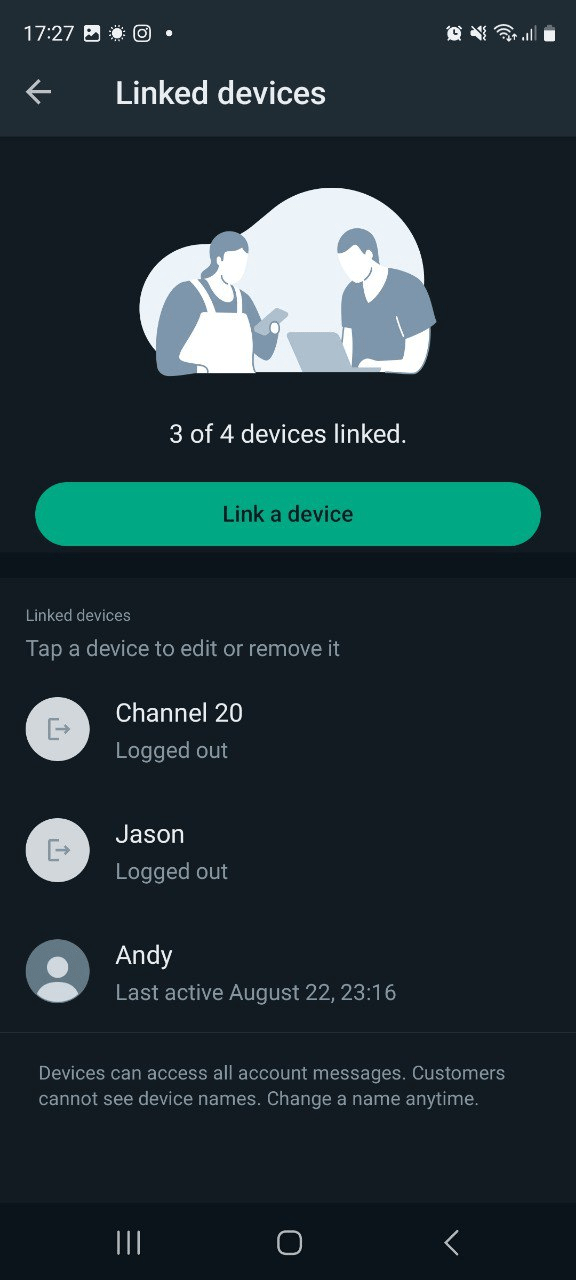
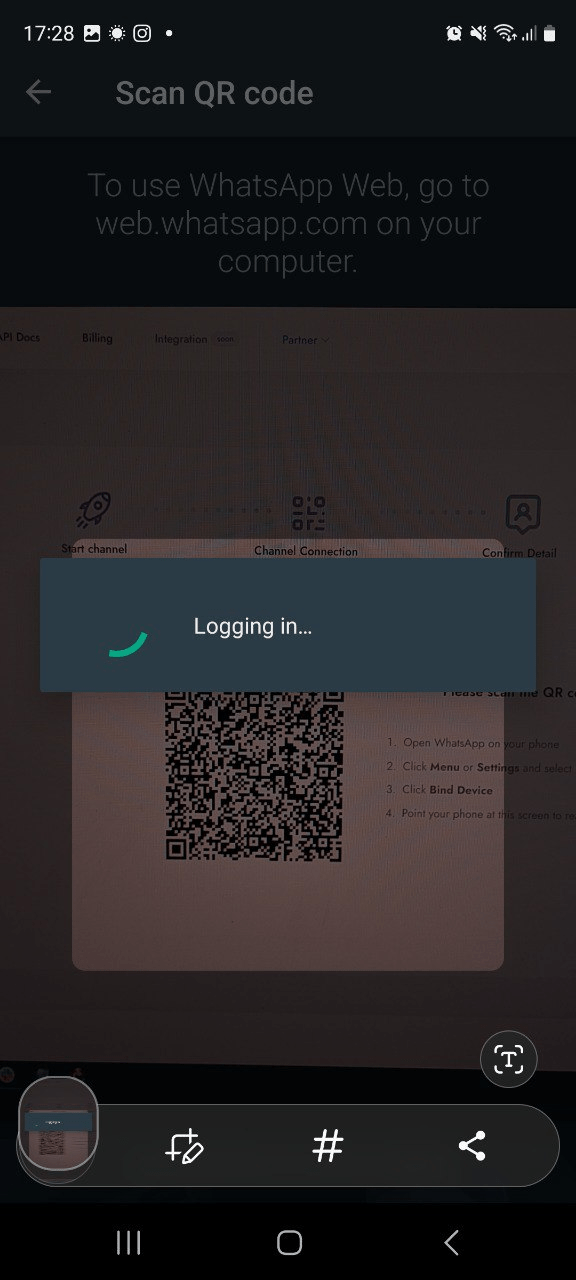
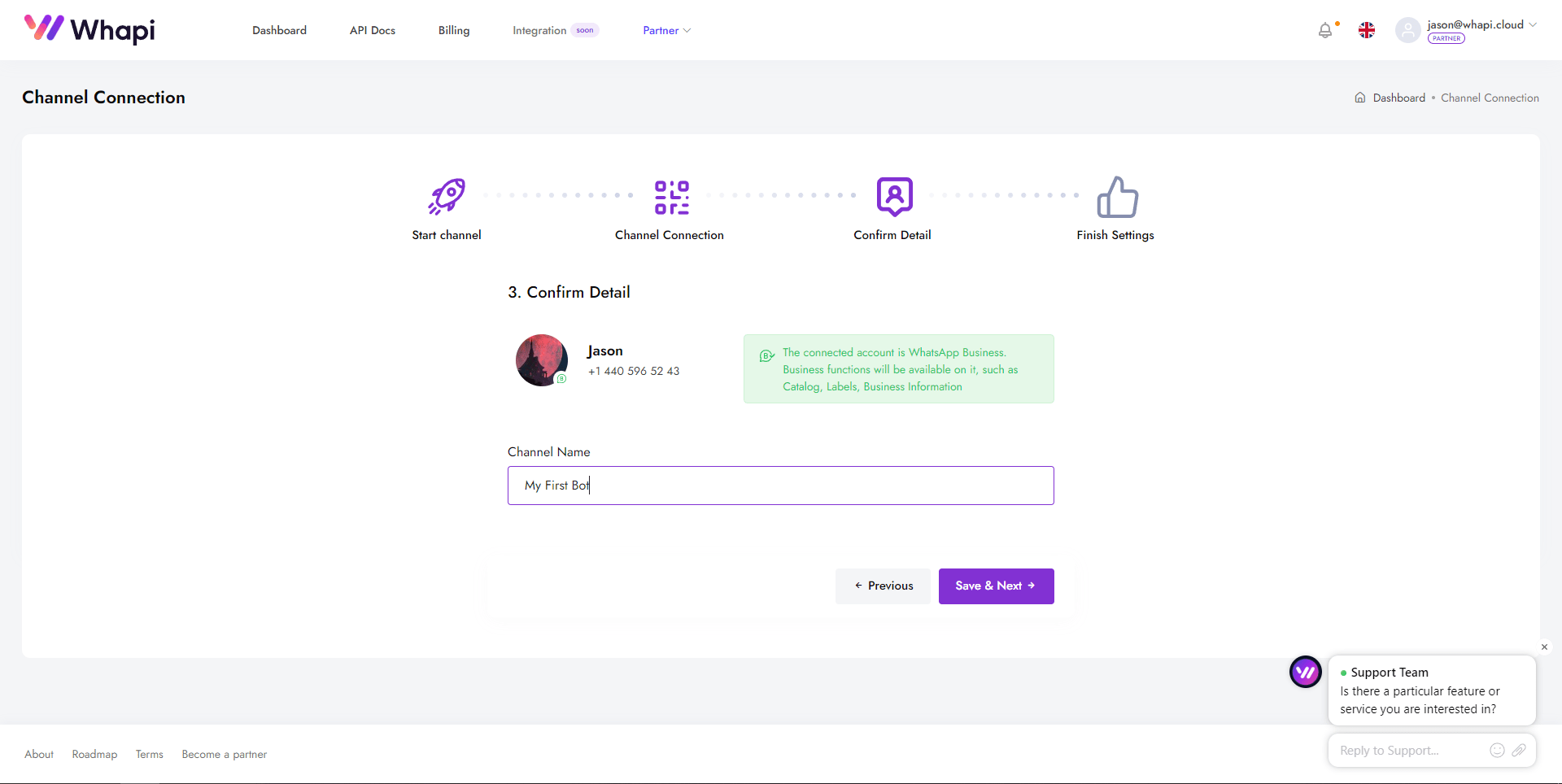
You can skip naming the channel and webhook screens in the wizard — the bot will set the webhook when it starts.
Great, now you have access to the API Token, which will be required for testing and further work with the endpoints. Save this token, as it will come in handy more than once. In the channel card, copy the API token. Paste it into
config.js as token. Requests to https://gate.whapi.cloud use it as a Bearer token.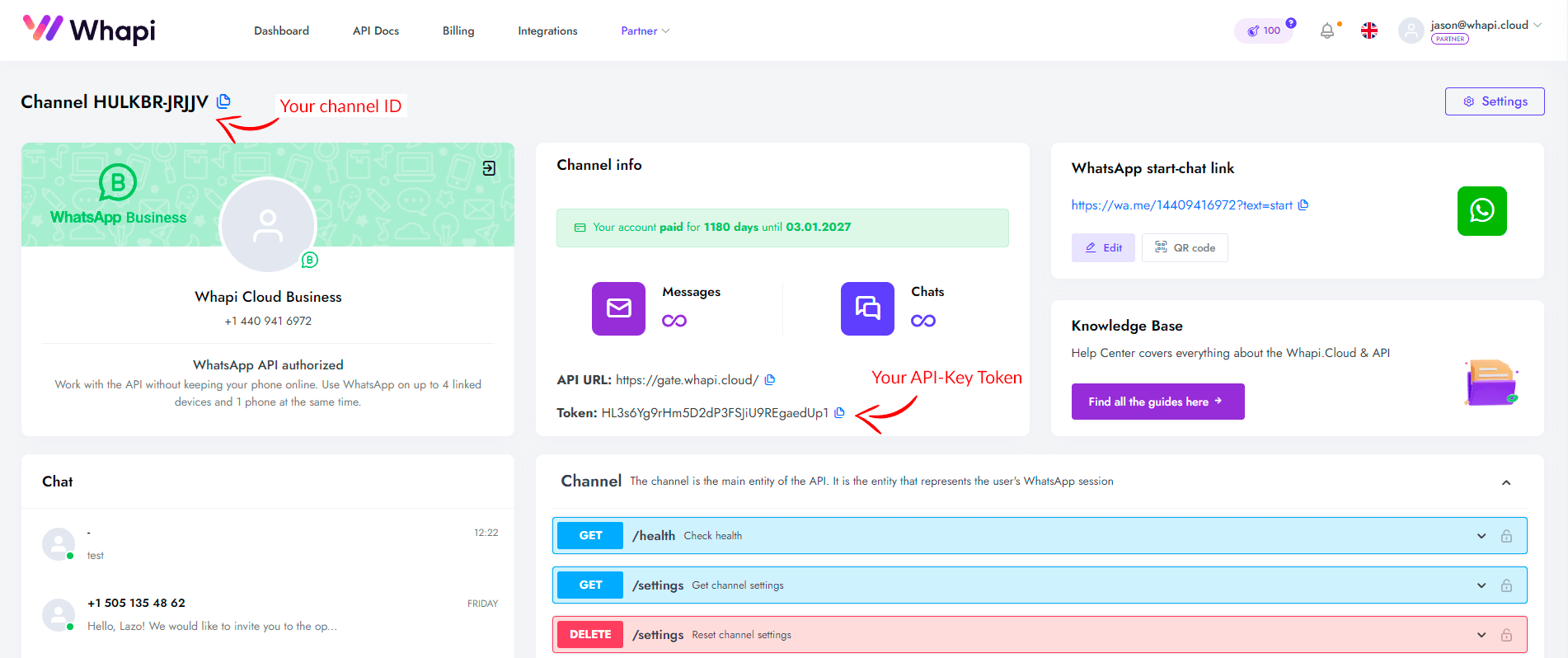
Before you start the bot
- Channel token pasted into
config.js. - A second phone to test; the bot skips messages sent by the connected number.
- Public HTTPS URL. Use ngrok locally, or any host with HTTPS in production.
Give the bot a public HTTPS URL
A webhook is a message Whapi.Cloud sends to your bot every time something happens in the connected WhatsApp account: a new text, a status change, a group invite.
Instead of asking "any new messages?" again and again, your script gets a POST with the event data as soon as it happens.
For example, Contact A sends you "hello" -> Whapi.Cloud POSTs a JSON body to
/hook/messages on your server -> the bot checks the command and replies. You do not paste the URL in the dashboard; the bot registers it from config.js when it starts.Whapi.Cloud delivers incoming messages with a POST to your public HTTPS URL. You do not paste that URL in the dashboard. Put it in
config.js as botUrl; on startup the repository registers it through the channel settings API.Local tunnel with ngrok
The default
port in config.js is 80 (do not use 443). Download ngrok, then run ngrok http 80 — or the port you set in config.js.Copy the
https:// forwarding URL. Set botUrl to that host plus /hook, for example botUrl: "https://84c7-151-33-282-113.ngrok-free.app/hook".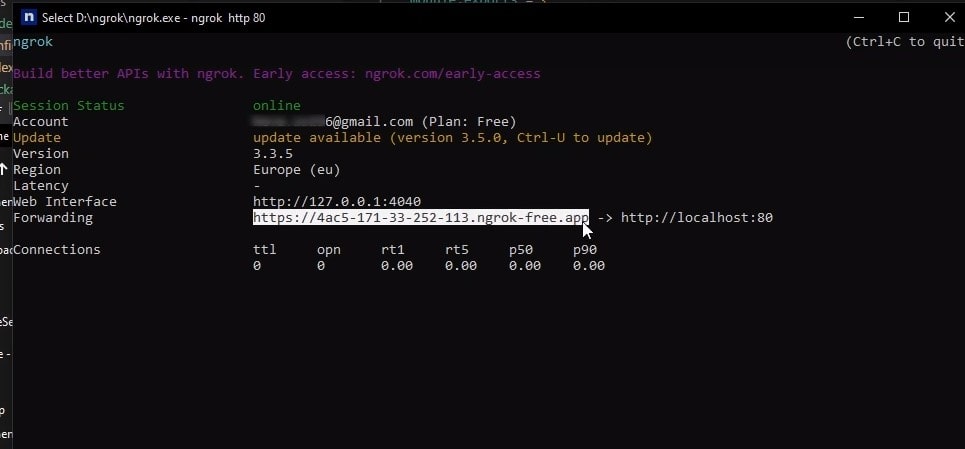
Keep the
/hook suffix. The server listens for POST on /hook/messages; botUrl is the prefix stored in channel settings.When you run
node index.js, the bot sends PATCH /settings with that URL and the messages event. Incoming WhatsApp messages then hit your process. You can ignore the webhook fields in the dashboard unless you want to inspect what was registered.What production needs
The host must be reachable from the internet over HTTPS, and the Node process must stay running so it can accept POST requests. After you change
botUrl, restart the bot so it re-registers the webhook.Launch the bot
Confirm
token and botUrl in config.js, then from the project root run node index.js. You should see a listening log. From a different phone, send any text to the connected number. The bot replies with a numbered menu.Command menu
- Simple text message
- Send image
- Send document
- Send video
- Send contact
- Send product
- Create group
- Simple text message for the group
- Get the ids of your three groups
Send the number only, for example 1. Anything else returns this list again.
Commands 6 and 8 use
product and group in config.js. Skip them for the first test. When you need them, list IDs with GET /groups and GET /business/products.Troubleshooting
The bot does not reply
Write from another phone — the script skips
from_me. Confirm the token, that botUrl ends in /hook, that ngrok (or your host) is still running, and that the process printed a listening message.The bot sends messages in a loop
Keep
if (message.from_me) continue. Without it the bot answers its own outgoing messages and never stops.It works in some chats but not others
Sandbox is limited to a small number of active conversations (currently 5 per month). A sixth chat will not get replies until you upgrade or wait for the limit to reset.
Send WhatsApp messages from Node.js
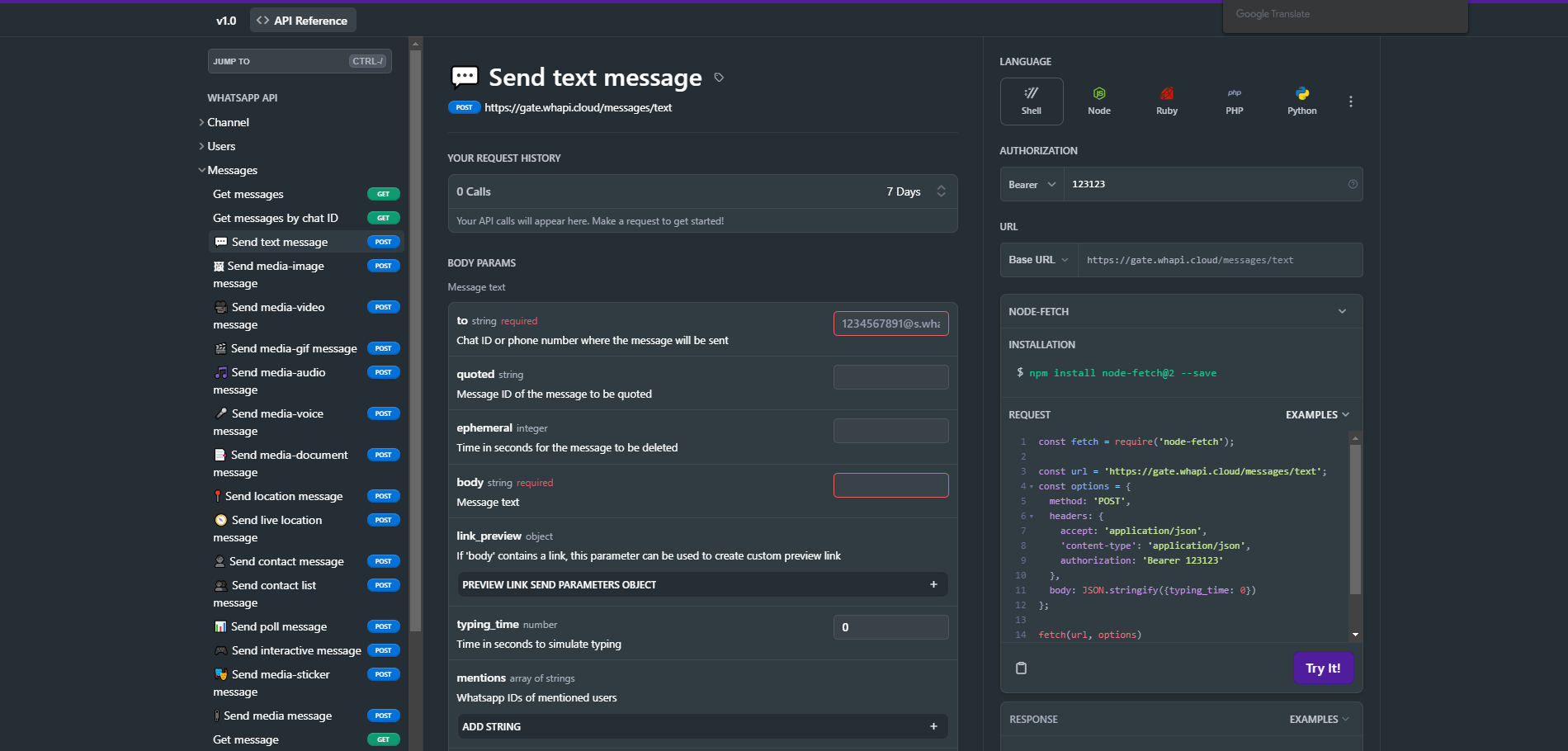
The cloned bot already implements send, receive, media, contacts, products, groups and more. The snippets below show the same HTTP pattern the bot uses internally: a
fetch call to https://gate.whapi.cloud with your Bearer token.Sending a text message
Send a plain text message to a chat or group:
                                    const response = await fetch('https://gate.whapi.cloud/messages/text', {
  method: 'POST',
  headers: {
    'Authorization': 'Bearer YOUR_API_TOKEN',
    'Content-Type': 'application/json'
  },
  body: JSON.stringify({
    to: '[email protected]',
    body: 'Hello from the cloned bot'
  })
});
const data = await response.json();
console.log(data);
Sending a document
Send a document by passing a public URL or a base64 payload:
                                    const response = await fetch('https://gate.whapi.cloud/messages/document', {
  method: 'POST',
  headers: {
    'Authorization': 'Bearer YOUR_API_TOKEN',
    'Content-Type': 'application/json'
  },
  body: JSON.stringify({
    to: '[email protected]',
    media: 'https://example.com/file.pdf',
    caption: 'Document from the bot'
  })
});
const data = await response.json();
console.log(data);
For the full list of message types and payloads see the API reference.
Working with WhatsApp groups
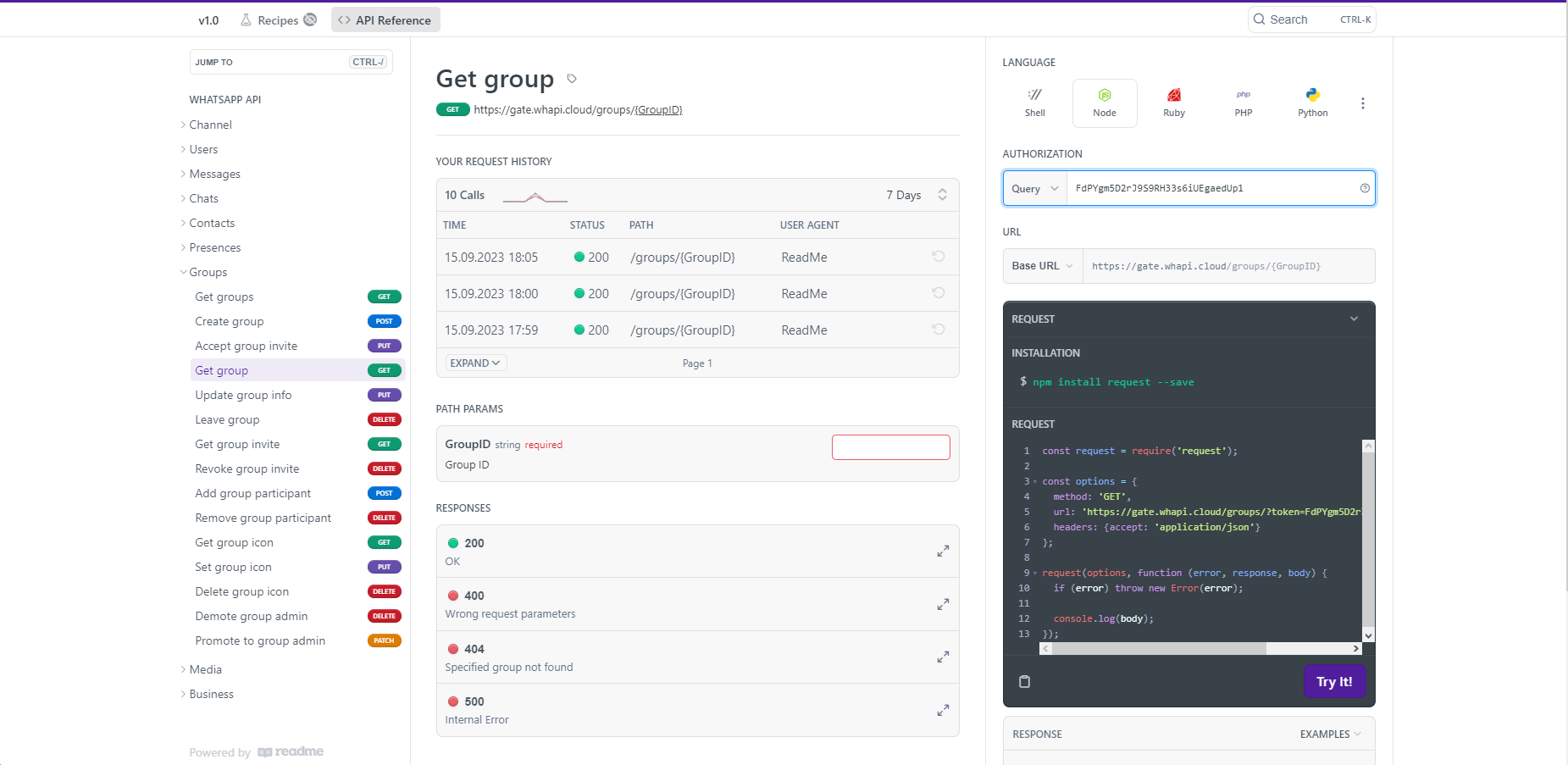
The bot can list groups you participate in and react to group messages. These examples reuse the same Bearer token and the
/groups endpoint.List your groups
Fetch the groups visible to the connected number:
                                    const response = await fetch('https://gate.whapi.cloud/groups', {
  method: 'GET',
  headers: {
    'Authorization': 'Bearer YOUR_API_TOKEN'
  }
});
const { groups } = await response.json();
console.log(groups);
Each group object includes name, picture, description and a participants array.
Count group participants
Loop the array to print each group name and member count:
                                    groups.forEach(group => {
  console.log(`Group Name: ${group.name}`);
  console.log(`Participants: ${group.participants.length}`);
});
Handle group messages
Group chat IDs end with
@g.us. Incoming webhooks use the same suffix; the cloned bot already branches on it when a command targets a group.
                                    // From the cloned bot: messages from groups use chat_id ending in @g.us
const messages = req.body.messages;
messages.forEach(message => {
  if (message.chat_id.endsWith('@g.us')) {
    console.log(`Group message: ${message.text?.body}`);
  }
});
For more group actions (create, invite, manage admins) see the groups guide in the docs.
Command 7 creates a group with the sender as a participant. Command 8 texts
config.group. Set that ID before you use those numbers.Keep it online
Leave
node index.js running on a machine with a public HTTPS URL, and set botUrl to https://your-host/hook. This bot is a long-running Express process, not a one-shot serverless function — a VPS or any Node host with HTTPS is enough. Restart after you change botUrl so the webhook is registered again.To ensure your WhatsApp chatbot is available 24/7, it needs to be hosted on a reliable hosting platform. You can use your server, but in this chapter, we will consider the three most popular platforms - Firebase, AWS, and Heroku - and go through the basic steps of deploying your bot on each of them.
The choice of platform depends on your preferences, budget, and project requirements. Each of the considered platforms offers its unique features and advantages. Firebase and AWS Lambda provide powerful backend functionality without the need to manage a server, while Heroku offers simplicity in deploying applications based on Git.
Firebase
Firebase offers Cloud Functions functionality, allowing you to run your bot without worrying about server infrastructure. In our opinion, this is the most optimal option.
- Create a project in Firebase Console;
- Install Firebase CLI, following the instructions;
- Initialize Firebase in your project directory with the command firebase init;
- Deploy your bot using the command firebase deploy --only functions.
AWS (Amazon Web Services)
AWS Lambda offers the ability to run code in response to triggers from other AWS services, making it a good choice for a bot.
- Register or log in to AWS Management Console;
- Create a new Lambda function through the AWS console, selecting API Gateway as the trigger;
- Upload your bot's code into the Lambda function;
- Configure the API Gateway to interact with your bot and the outside world.
Heroku
Heroku offers an easy-to-use platform for hosting applications, which can automatically deploy code from your Git repository.
- Create an account on Heroku;
- Install Heroku CLI and log in;
- Create a new Heroku app through the console or using the command heroku create;
- Link your Git repository to Heroku and perform deployment with the commands git push heroku master;
- Set the webhook URL provided by Heroku.
Next steps
With the bot running, you can build on it. Send files via a public URL; distribute incoming leads across WhatsApp groups; connect a CRM so bookings and orders update in real time; use polls as a lightweight alternative to buttons; post statuses and react to customer messages to keep them engaged; or validate phone numbers before a broadcast. Browse the API docs or explore groups, channels, communities, MCP, n8n, Make, agent skills and the chatbot hub.