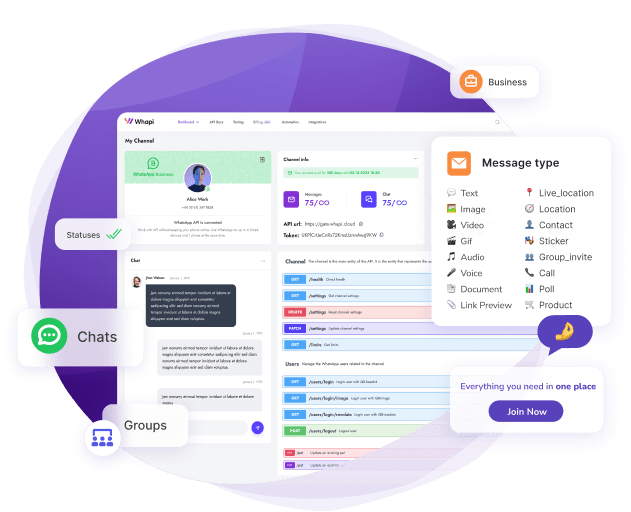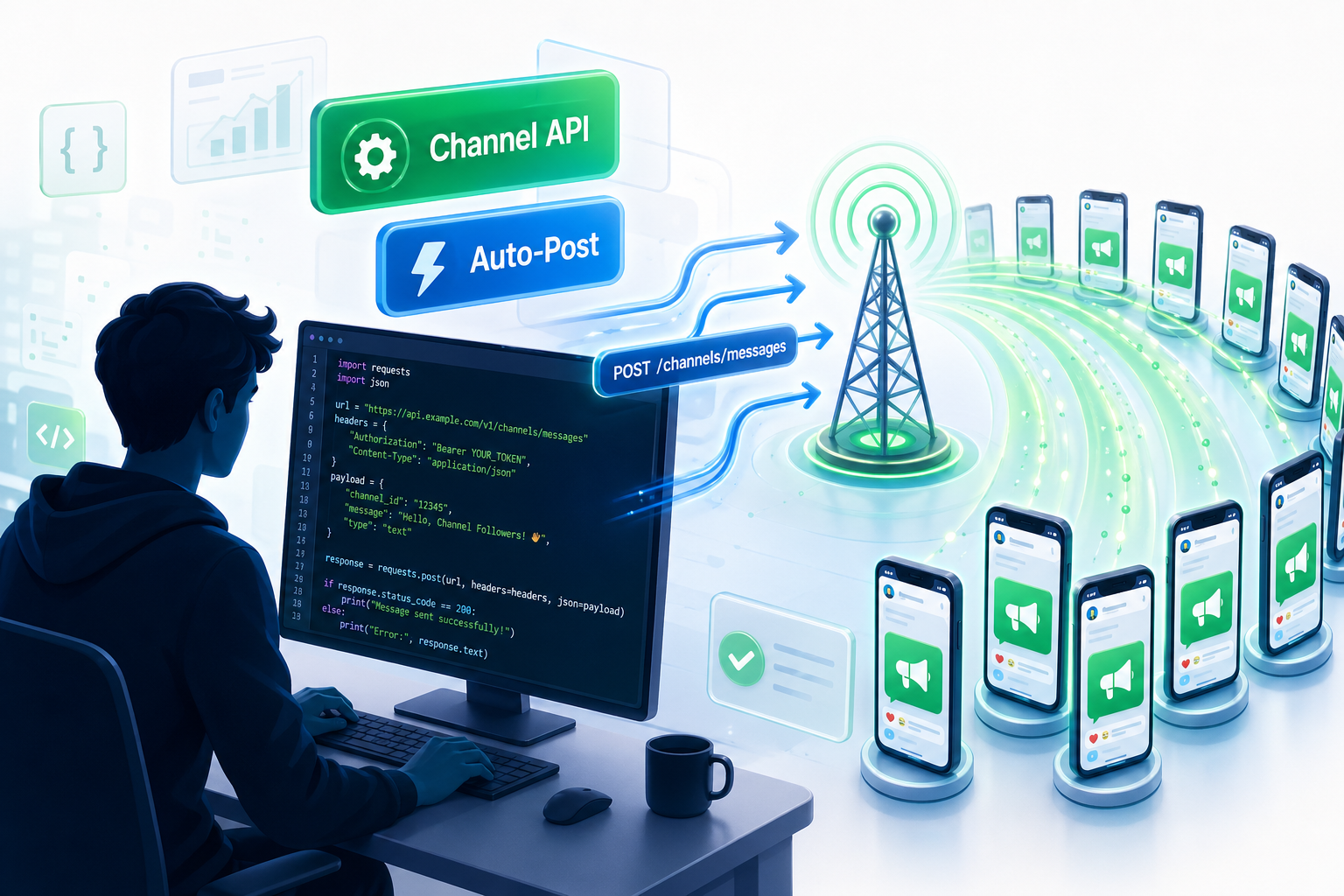
TL;DR: Whapi.Cloud's REST API gives you programmatic control over all seven WhatsApp Channel post types -- text, images, video, polls, voice, stickers, and link previews. The minimum working setup: a Bearer token, your Channel ID in 120363171744447809@newsletter format, and a POST to https://gate.whapi.cloud/messages/{type} with to set to the Channel ID. Media types (image, video, voice, sticker) use the media field with a base64-encoded file or public URL.
Whapi.Cloud's REST API gives you complete scripted control over every WhatsApp Channel post type. This guide covers all seven with working Python code you can drop into a scheduler today. The endpoint pattern is the same throughout: authenticate with a Bearer token, set to to your Channel ID, add the type-specific fields, and POST. No Meta approval, no template pre-registration.
What Are WhatsApp Channels and Why Automate Them?
WhatsApp Channels deliver posts to all followers at once. Followers can react with emoji but cannot reply; the Channel admin is the only sender.
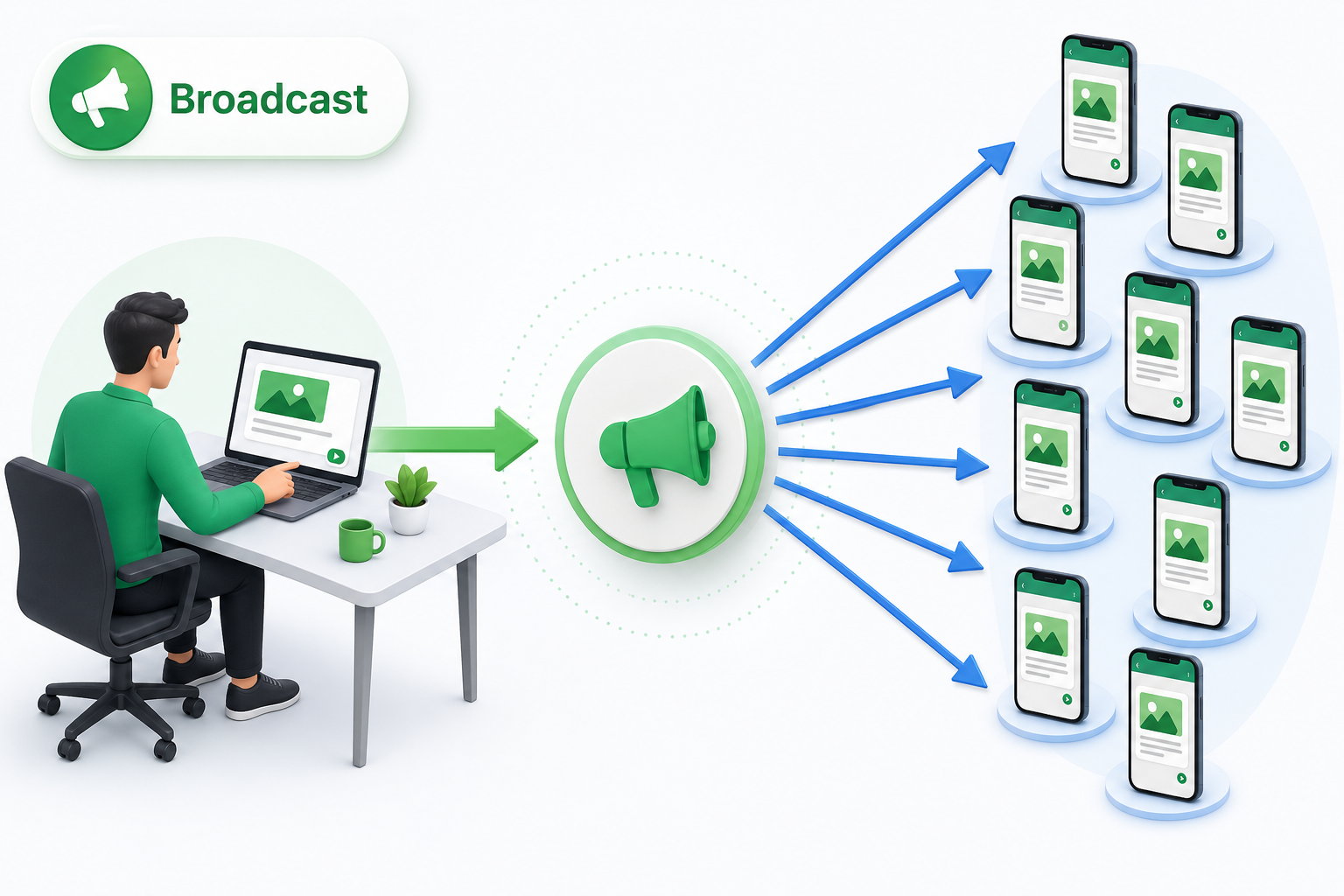
Composing content in the WhatsApp app each morning does not scale to scheduled campaigns or multi-format content pipelines. The WhatsApp Business App has no built-in scheduler. The official Meta Cloud API does not expose Channels programmatically at all. Whapi.Cloud fills that gap with a full REST interface for Channel posting. See the WhatsApp Channels API page for the complete feature list.
Prerequisites: API Token, Channel ID Format, and Setup
You need three things before running any example in this guide: a Whapi.Cloud account with an active channel connected, an API token from your dashboard, and the Channel ID for the Channel you want to post to.
- Register at panel.whapi.cloud/register and connect your WhatsApp number via QR code.
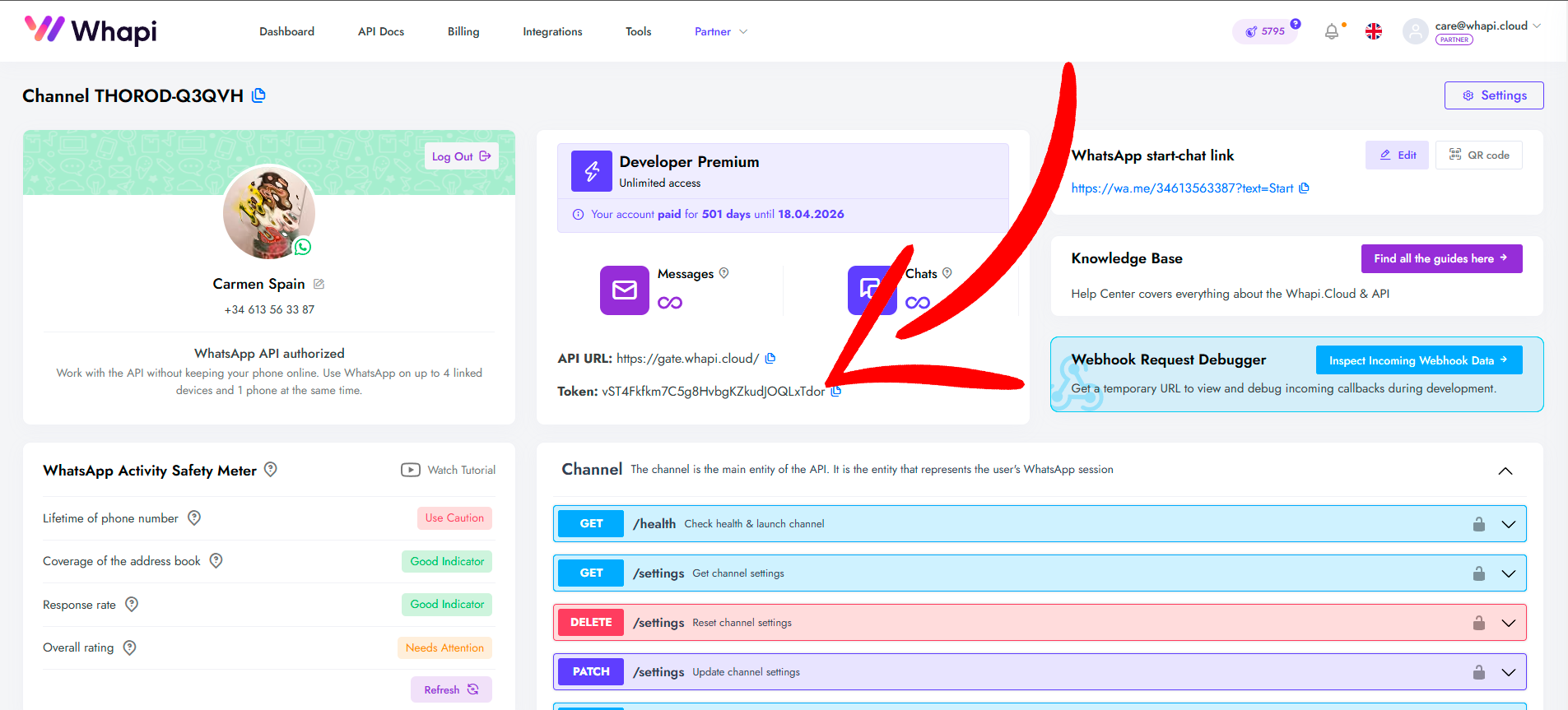
- Copy your API token from the channel dashboard; this is your Bearer token for all requests.
- Find your Channel ID: open your WhatsApp Channel, share its invite link, and extract the numeric ID from the URL. The API format appends
@newsletter-- for example,120363171744447809@newsletter. - Confirm access:
GET https://gate.whapi.cloud/newslettersreturns the list of Channels your connected number administers, including their IDs.
All examples below use gate.whapi.cloud as the base URL and the requests library. Install it with pip install requests. For the full API reference and parameter documentation, see the Channel posting guide in the Whapi.Cloud knowledge base.
Sending Text Posts to a WhatsApp Channel via API
Text is the simplest post type and the foundation for every other type. Get this working first, then extend the pattern to media and polls.
The to field accepts the Channel ID directly -- no special channel endpoint needed; the same /messages/text endpoint serves individual chats, groups, and Channels alike. The only distinction is the @newsletter suffix in the recipient ID.
The required fields are to (your Channel ID) and body (the message text). WhatsApp formatting markup works in Channel posts exactly as it does in regular messages: bold with *asterisks*, italic with _underscores_, monospace with `backticks`.
import requests

API_TOKEN = "your_whapi_token_here"
CHANNEL_ID = "120363171744447809@newsletter"
BASE_URL = "https://gate.whapi.cloud"


def send_text_post(text: str) -> dict:
    """Send a plain text post to a WhatsApp Channel. Returns the API response."""
    url = f"{BASE_URL}/messages/text"
    headers = {
        "Authorization": f"Bearer {API_TOKEN}",
        "Content-Type": "application/json",
    }
    payload = {
        "to": CHANNEL_ID,
        "body": text,
    }
    try:
        response = requests.post(url, headers=headers, json=payload, timeout=30)
        if response.status_code == 401:
            raise ValueError("Authentication failed -- verify your API token in the dashboard")
        if response.status_code == 429:
            raise RuntimeError("Rate limit hit -- reduce send frequency and add backoff")
        response.raise_for_status()
        return response.json()
    except requests.exceptions.RequestException as e:
        print(f"[ERROR] Text post failed: {e}")
        raise


# Usage
result = send_text_post(
    "*Weekly recap* -- here is what happened in our community this week.\n\n"
    "- New feature launched\n"
    "- Support hours extended\n"
    "- Next webinar: Friday 3 PM UTC"
)
print(f"Sent. Message ID: {result['sent_message']['id']}")
The response includes sent_message.id; store this if you need to edit or reference the post later. The edit parameter in the same endpoint lets you update an already-sent post by passing its message ID.
Sending Image Posts to a WhatsApp Channel via API
Image posts require a two-step process: prepare the media, then send it to the Channel. The API accepts JPEG and PNG files.
The media field accepts a base64-encoded data URI, a public HTTPS URL, or a media ID from a prior upload -- all three produce the same result on the follower's screen.
The example below reads a local file, encodes it to base64, and posts it in a single call. For files larger than 5 MB, use POST /media to upload the file first and receive a hosted URL, then reference that URL in the media field. This avoids payload size issues on slow connections. The optional caption field adds text below the image in the follower's Channel feed.
import requests
import base64

API_TOKEN = "your_whapi_token_here"
CHANNEL_ID = "120363171744447809@newsletter"
BASE_URL = "https://gate.whapi.cloud"


def send_image_post(image_path: str, caption: str = "") -> dict:
    """
    Two-step image post to a WhatsApp Channel.
      Step 1 -- read local file and encode as base64 data URI.
      Step 2 -- POST to /messages/image with the encoded media.
    Accepts JPEG or PNG. Returns the API response.
    """
    # Step 1: Read and encode the image
    with open(image_path, "rb") as f:
        image_bytes = f.read()

    mime = "image/jpeg" if image_path.lower().endswith((".jpg", ".jpeg")) else "image/png"
    media_b64 = f"data:{mime};base64,{base64.b64encode(image_bytes).decode()}"

    # Step 2: Post to the Channel
    url = f"{BASE_URL}/messages/image"
    headers = {
        "Authorization": f"Bearer {API_TOKEN}",
        "Content-Type": "application/json",
    }
    payload = {
        "to": CHANNEL_ID,
        "media": media_b64,
        "caption": caption,  # optional: text displayed below the image
    }
    response = requests.post(url, headers=headers, json=payload, timeout=60)
    response.raise_for_status()
    return response.json()


# Usage
result = send_image_post(
    "campaign_banner.jpg",
    "Our spring sale starts today -- 30% off sitewide."
)
print(f"Image post sent. ID: {result['sent_message']['id']}")
To pass a public URL instead of encoding a file, replace media_b64 with the URL string directly: "media": "https://yourcdn.com/image.jpg". Whapi.Cloud downloads and delivers the file on your behalf. This is the faster path when your assets are already hosted.
Sending Video Posts to a WhatsApp Channel via API
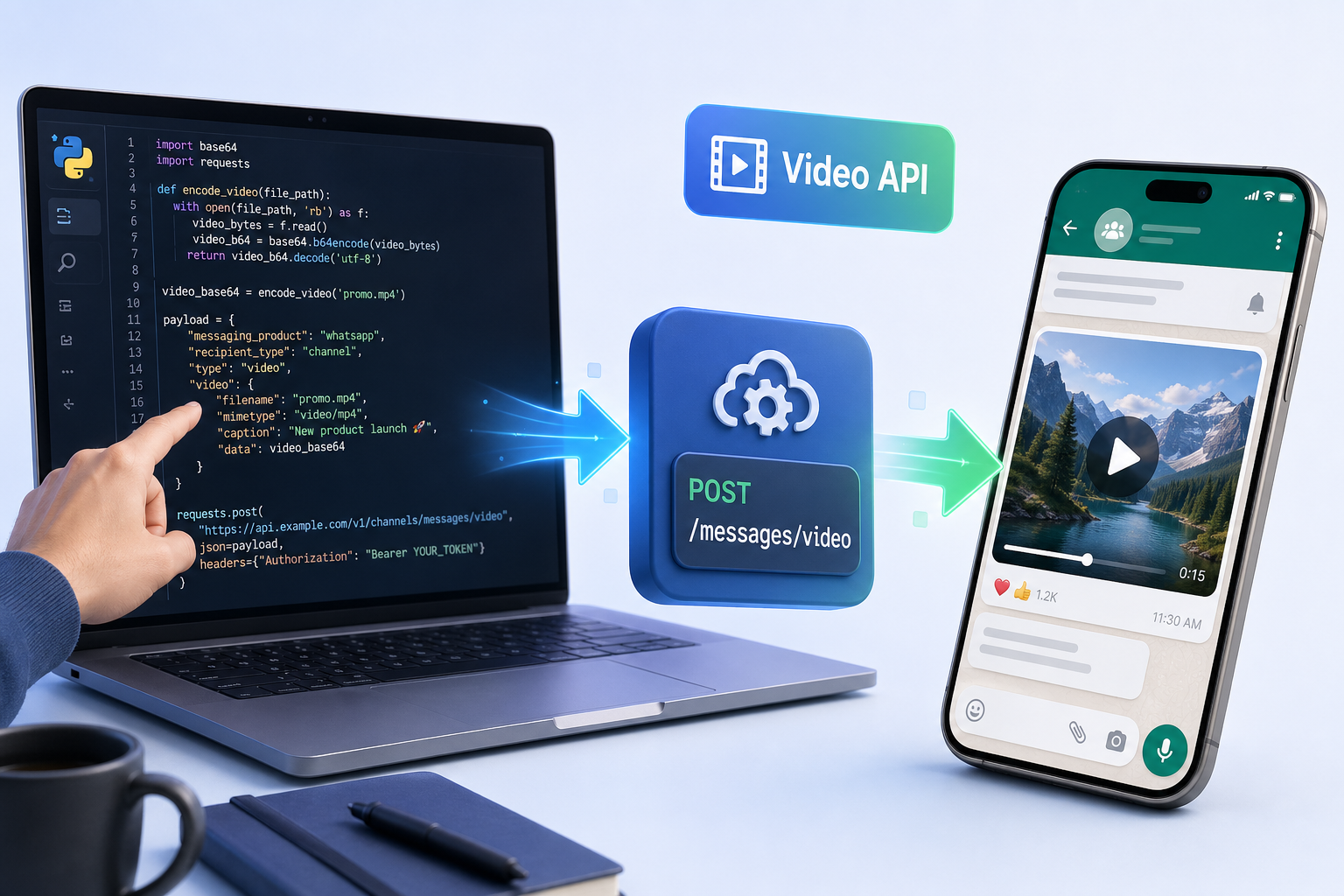
Video posts follow the same structure as images. The only changes are the endpoint path and the MIME type in the data URI.
Keep video files under 16 MB and in MP4 format. WhatsApp enforces this at the delivery layer and rejects non-conforming files before they reach followers. For longer recordings, trim or compress before posting.
The caption field works the same way as with images. Videos render inline in the Channel feed and play on tap without leaving WhatsApp.
import requests
import base64

API_TOKEN = "your_whapi_token_here"
CHANNEL_ID = "120363171744447809@newsletter"
BASE_URL = "https://gate.whapi.cloud"


def send_video_post(video_path: str, caption: str = "") -> dict:
    """
    Two-step video post to a WhatsApp Channel.
      Step 1 -- read MP4 file and encode as base64 data URI.
      Step 2 -- POST to /messages/video.
    Video must be MP4 format, under 16 MB. Returns the API response.
    """
    # Step 1: Read and encode the video
    with open(video_path, "rb") as f:
        video_bytes = f.read()
    media_b64 = f"data:video/mp4;base64,{base64.b64encode(video_bytes).decode()}"

    # Step 2: Post to the Channel
    url = f"{BASE_URL}/messages/video"
    headers = {
        "Authorization": f"Bearer {API_TOKEN}",
        "Content-Type": "application/json",
    }
    payload = {
        "to": CHANNEL_ID,
        "media": media_b64,
        "caption": caption,
    }
    response = requests.post(url, headers=headers, json=payload, timeout=120)
    response.raise_for_status()
    return response.json()


# Usage
result = send_video_post("product_demo.mp4", "See how it works in 90 seconds.")
print(f"Video post sent. ID: {result['sent_message']['id']}")
Set timeout=120 or higher for large video files. Base64 encoding a 10 MB video produces a ~14 MB payload, and slower connections may need more than the default 30-second window to complete the POST.
Running Polls on Your WhatsApp Channel via API
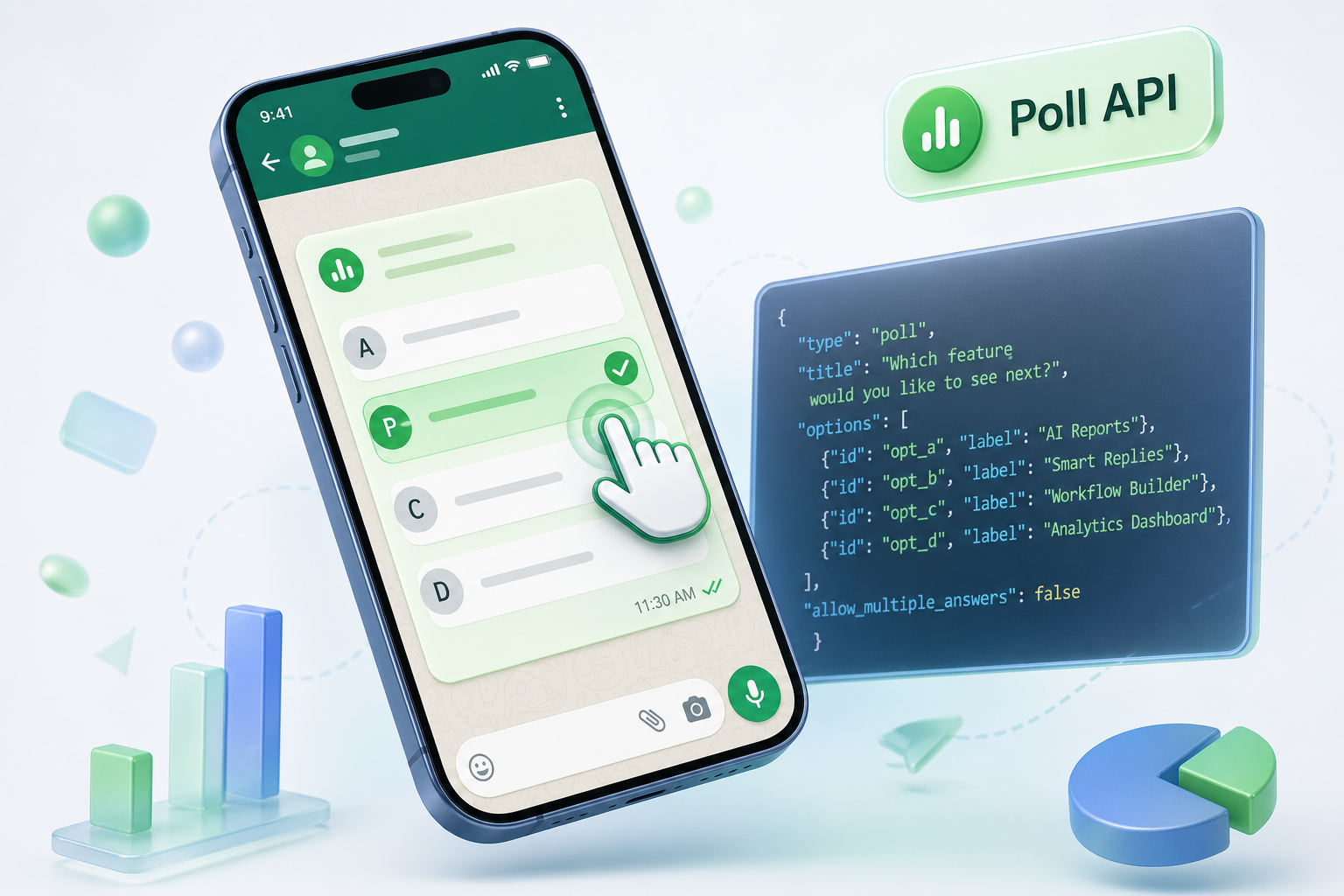
WhatsApp Channel poll automation turns a passive broadcast into structured audience feedback; followers tap to vote without leaving the app.
Set count to 1 for single-choice polls and 0 to allow multiple selections. Zero means unlimited choices, not zero choices. The options field takes a plain list of strings; no option IDs or weights are required.
Poll results are not returned by the posting API. Reactions and vote counts are a separate retrieval concern. This endpoint creates and sends the poll. For automating a weekly audience survey, wrap the function below in a scheduler and vary the title and options from a config file or database.
import requests

API_TOKEN = "your_whapi_token_here"
CHANNEL_ID = "120363171744447809@newsletter"
BASE_URL = "https://gate.whapi.cloud"


def send_poll_post(question: str, options: list, allow_multiple: bool = False) -> dict:
    """
    Send a poll to a WhatsApp Channel.
    Inputs: question (poll title), options (list of answer strings),
            allow_multiple (True = followers can pick multiple answers).
    Returns the API response.
    """
    url = f"{BASE_URL}/messages/poll"
    headers = {
        "Authorization": f"Bearer {API_TOKEN}",
        "Content-Type": "application/json",
    }
    payload = {
        "to": CHANNEL_ID,
        "title": question,
        "options": options,
        "count": 0 if allow_multiple else 1,  # 0 = multiple answers allowed
    }
    response = requests.post(url, headers=headers, json=payload, timeout=30)
    response.raise_for_status()
    return response.json()


# Usage -- single-choice poll
result = send_poll_post(
    question="What content do you want more of next month?",
    options=["Tutorials", "Case studies", "Product updates", "Industry news"],
    allow_multiple=False,
)
print(f"Poll sent. ID: {result['sent_message']['id']}")

# Usage -- multiple-choice poll
result = send_poll_post(
    question="Which features do you use weekly? (select all that apply)",
    options=["Messaging API", "Webhooks", "Channel posts", "Group management"],
    allow_multiple=True,
)
Polls work especially well for content calendars: automate a Friday poll each week with topics for the coming week's posts, then use the result to decide which content to publish Monday. The automation loop becomes self-reinforcing.
Sending Voice Messages to a WhatsApp Channel via API
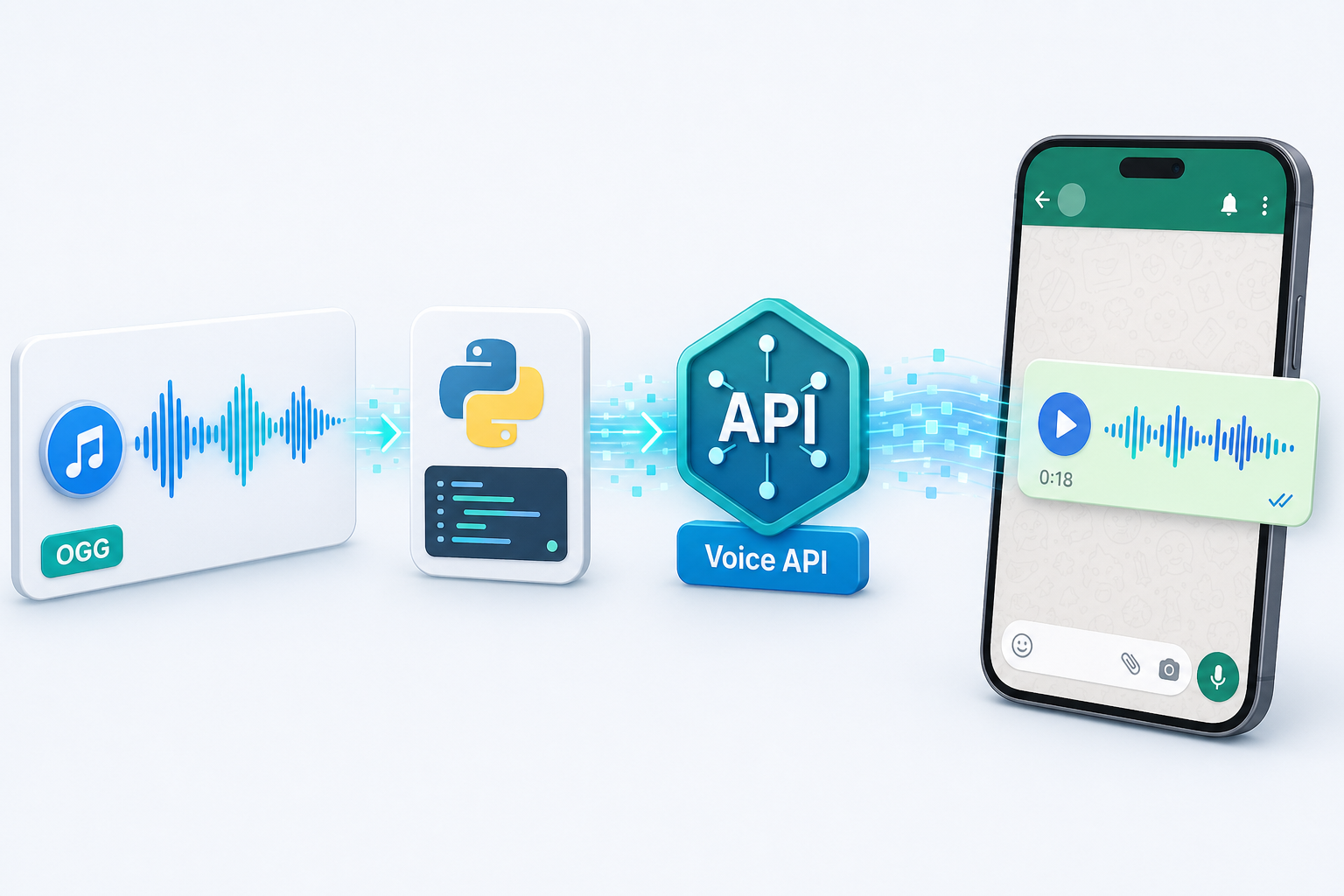
Voice messages in WhatsApp Channels render as audio clips with a waveform display; followers tap to play without leaving the Channel feed. This format works well for spoken updates, podcast-style segments, or executive addresses.
Voice messages sent to Channels must be in OGG format with the OPUS audio codec. WhatsApp rejects other audio formats at the delivery layer, and the API returns success while the audio clip simply never renders in the follower's feed. MP3 and WAV files will not render as voice messages. Convert your recordings with ffmpeg -i input.mp3 -c:a libopus output.ogg before sending.
The two-step process here: encode the OGG file as a base64 data URI, then POST to /messages/voice. The optional seconds parameter sets the displayed duration; if omitted, WhatsApp calculates it from the file. The recording_time parameter simulates a typing indicator before delivery, which is rarely useful in Channel contexts but available.
import requests
import base64

API_TOKEN = "your_whapi_token_here"
CHANNEL_ID = "120363171744447809@newsletter"
BASE_URL = "https://gate.whapi.cloud"


def send_voice_post(audio_path: str, duration_seconds: int = None) -> dict:
    """
    Two-step voice message post to a WhatsApp Channel.
      Step 1 -- read OGG/OPUS file and encode as base64 data URI.
      Step 2 -- POST to /messages/voice.
    Audio MUST be OGG format with OPUS codec. Returns the API response.
    """
    # Step 1: Read and encode the audio (OGG/OPUS required)
    with open(audio_path, "rb") as f:
        audio_bytes = f.read()
    media_b64 = (
        f"data:audio/ogg;codecs=opus;base64,{base64.b64encode(audio_bytes).decode()}"
    )

    # Step 2: Post voice message to the Channel
    url = f"{BASE_URL}/messages/voice"
    headers = {
        "Authorization": f"Bearer {API_TOKEN}",
        "Content-Type": "application/json",
    }
    payload = {
        "to": CHANNEL_ID,
        "media": media_b64,
    }
    if duration_seconds is not None:
        payload["seconds"] = duration_seconds  # sets the displayed clip duration

    response = requests.post(url, headers=headers, json=payload, timeout=60)
    response.raise_for_status()
    return response.json()


# Usage
result = send_voice_post("weekly_update.ogg", duration_seconds=47)
print(f"Voice message sent. ID: {result['sent_message']['id']}")
To automate a recurring voice segment, generate the OGG file programmatically with a text-to-speech engine (such as OpenAI TTS or Google Cloud TTS), save the output to update.ogg, and pass it to send_voice_post from a scheduler.
Sending Sticker Posts to a WhatsApp Channel via API
The sticker endpoint handles both static and animated WebP files; the same function works for both, with only the animated flag changing between them.
WebP is the only accepted sticker format. JPEG and PNG uploads are rejected by the WhatsApp API before delivery to followers. Animated stickers use the same WebP container with multiple frames. Set animated: True in the payload when sending an animated file; the flag helps WhatsApp render it correctly.
Sticker dimensions should be 512×512 pixels for static stickers. Files over 500 KB may render slowly on lower-end devices. Compress WebP files with tools like cwebp before running batch sticker jobs. The two-step process is identical to image and voice: encode the WebP file, POST to the sticker endpoint.
import requests
import base64

API_TOKEN = "your_whapi_token_here"
CHANNEL_ID = "120363171744447809@newsletter"
BASE_URL = "https://gate.whapi.cloud"


def send_sticker_post(sticker_path: str, animated: bool = False) -> dict:
    """
    Two-step sticker post to a WhatsApp Channel.
      Step 1 -- read WebP file and encode as base64 data URI.
      Step 2 -- POST to /messages/sticker.
    Sticker MUST be WebP format -- JPEG and PNG are rejected. Returns the API response.
    """
    # Step 1: Read and encode the sticker (WebP format required)
    with open(sticker_path, "rb") as f:
        sticker_bytes = f.read()
    media_b64 = f"data:image/webp;base64,{base64.b64encode(sticker_bytes).decode()}"

    # Step 2: Post to the Channel
    url = f"{BASE_URL}/messages/sticker"
    headers = {
        "Authorization": f"Bearer {API_TOKEN}",
        "Content-Type": "application/json",
    }
    payload = {
        "to": CHANNEL_ID,
        "media": media_b64,
        "animated": animated,  # True for animated WebP stickers
    }
    response = requests.post(url, headers=headers, json=payload, timeout=30)
    response.raise_for_status()
    return response.json()


# Static sticker
result = send_sticker_post("celebration.webp", animated=False)
print(f"Sticker sent. ID: {result['sent_message']['id']}")

# Animated sticker
result = send_sticker_post("confetti_animation.webp", animated=True)
Convert existing PNG or JPEG brand assets to WebP with cwebp input.png -o output.webp -q 80. For a consistent brand sticker set, pre-convert and store all stickers in a /stickers directory, then select from the set programmatically based on post context (celebration, alert, reminder, and so on).
Sending Link Preview Posts to Your WhatsApp Channel
Link preview posts share a URL as a rich card: title, description, and a thumbnail image displayed inline in the Channel feed, without requiring followers to tap through first.
The URL must appear verbatim inside the body field. WhatsApp reads the link from the message text to generate the preview card. A title without a URL in the body renders no preview. The title field customizes the card heading, and description adds the subtitle text below it.
import requests

API_TOKEN = "your_whapi_token_here"
CHANNEL_ID = "120363171744447809@newsletter"
BASE_URL = "https://gate.whapi.cloud"


def send_link_preview_post(
    message_text: str,
    url: str,
    title: str,
    description: str = "",
) -> dict:
    """
    Send a link preview card to a WhatsApp Channel.
    Inputs: message_text (context before the link), url (must be in body),
            title (card heading), description (card subtitle).
    Returns the API response.
    """
    endpoint = f"{BASE_URL}/messages/link-preview"
    headers = {
        "Authorization": f"Bearer {API_TOKEN}",
        "Content-Type": "application/json",
    }
    payload = {
        "to": CHANNEL_ID,
        "body": f"{message_text}\n{url}",  # URL must be present in body
        "title": title,
        "description": description,
    }
    response = requests.post(endpoint, headers=headers, json=payload, timeout=30)
    response.raise_for_status()
    return response.json()


# Usage
result = send_link_preview_post(
    message_text="Read our latest case study on WhatsApp automation:",
    url="https://whapi.cloud/blog/automation-case-study",
    title="How We 10x'd Customer Responses with WhatsApp API",
    description="A step-by-step breakdown of the full automation stack, costs included.",
)
print(f"Link preview sent. ID: {result['sent_message']['id']}")
To add a custom thumbnail image to the preview card, include the preview field with a base64-encoded JPEG image. Without it, WhatsApp scrapes the Open Graph image from the URL. This works for most pages with properly set og:image tags.
No-Code Automation with n8n and Make
n8n and Make automate full WhatsApp Channel posting pipelines with zero Python required. The same REST endpoints work via HTTP Request nodes in both platforms.
In n8n: add an HTTP Request node, set the method to POST, enter https://gate.whapi.cloud/messages/text as the URL, add a Header with Authorization: Bearer your_token, and set the body to JSON with to and body fields. Chain a Schedule Trigger node ahead of it to run on a cron expression. Any message type from this guide works the same way: swap the endpoint path and body fields. Make (formerly Integromat) uses the same approach via its HTTP module.
Both platforms support conditional branches, data lookups from Google Sheets or Airtable, and multi-step workflows. For example: trigger on a new spreadsheet row, format the message, post to Channel, log the delivery status. No server required beyond the platform subscription.
Error Handling, Rate Limits, and Retry Logic
Production automation breaks in two predictable ways: authentication errors and delivery rejections. Handle both explicitly rather than letting unhandled exceptions stop your scheduler silently.
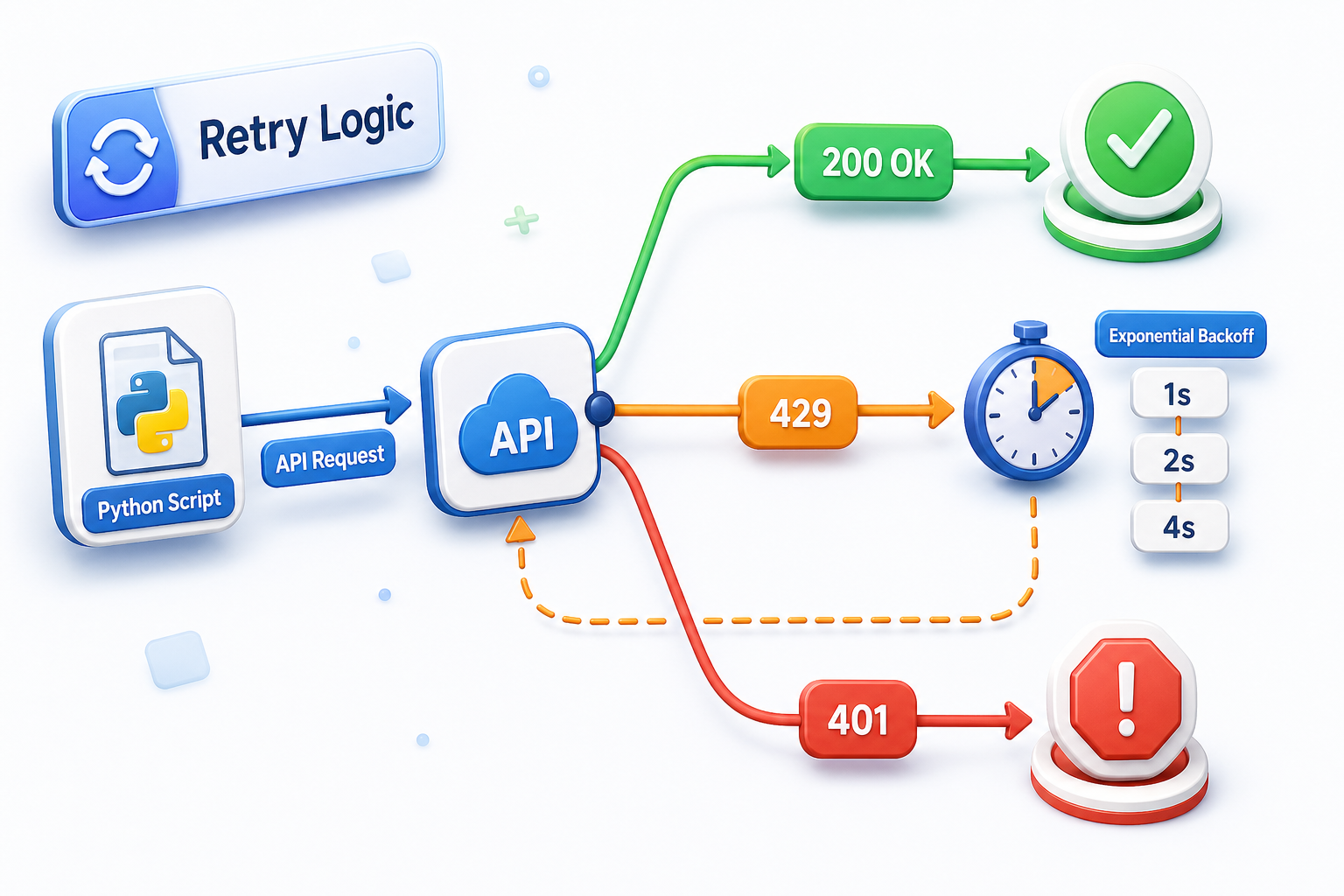
A 429 response signals WhatsApp server-side spam detection, not a Whapi.Cloud-level limit -- production plans have no hard API rate caps from Whapi's side. Any pacing you add is about avoiding WhatsApp enforcement patterns, not working around API quotas. Rapid bursts of identical messages to a Channel are the primary trigger; spacing posts by at least a few seconds is sufficient for most workloads.
The retry function below wraps any message type from this guide. It handles the three most common failure modes: 401 (invalid or expired token), 429 (back-pressure from WhatsApp), and transient network timeouts. The exponential backoff doubles the wait on each retry: 1 second, then 2, then 4.
import requests
import time

API_TOKEN = "your_whapi_token_here"
CHANNEL_ID = "120363171744447809@newsletter"
BASE_URL = "https://gate.whapi.cloud"


def send_with_retry(endpoint: str, payload: dict, max_retries: int = 3) -> dict:
    """
    POST to a Whapi.Cloud message endpoint with exponential backoff retry.
    Inputs: endpoint (e.g. 'text', 'image', 'poll'), payload dict, max_retries.
    Handles 401 (auth), 429 (rate limit), and transient timeouts.
    Returns the API response dict on success.
    """
    url = f"{BASE_URL}/messages/{endpoint}"
    headers = {
        "Authorization": f"Bearer {API_TOKEN}",
        "Content-Type": "application/json",
    }

    for attempt in range(max_retries):
        try:
            response = requests.post(url, headers=headers, json=payload, timeout=30)

            if response.status_code == 401:
                # No point retrying -- token is wrong or revoked
                raise ValueError(
                    "API token rejected (401). Rotate your token in the Whapi.Cloud dashboard."
                )

            if response.status_code == 429:
                # WhatsApp server signaling back-pressure -- back off and retry
                wait = 2 ** attempt  # 1s, 2s, 4s
                print(f"[WARN] 429 received on attempt {attempt + 1}. Waiting {wait}s.")
                time.sleep(wait)
                continue

            response.raise_for_status()
            return response.json()

        except requests.exceptions.Timeout:
            print(f"[WARN] Timeout on attempt {attempt + 1} -- retrying.")
            if attempt < max_retries - 1:
                time.sleep(2 ** attempt)
            else:
                raise

    raise RuntimeError(f"All {max_retries} retries exhausted for endpoint '{endpoint}'.")


# Example: send text with retry
result = send_with_retry(
    "text",
    {"to": CHANNEL_ID, "body": "Scheduled daily update -- delivered automatically."},
)
print(f"Delivered. Message ID: {result['sent_message']['id']}")

# Example: send a poll with retry
result = send_with_retry(
    "poll",
    {
        "to": CHANNEL_ID,
        "title": "What should we cover next week?",
        "options": ["Security", "Performance", "Integrations"],
        "count": 1,
    },
)
For a production scheduler, log every successful message ID and every failed attempt to a file or database. This gives you a delivery audit trail and lets you skip already-sent messages if the scheduler restarts mid-run.
A practical safe posting cadence for most Channels: 1--10 posts per day, with at least 10--30 seconds between consecutive posts when batching. Accounts with large follower counts and established history can post more frequently without triggering enforcement. Start conservatively and increase gradually.
WhatsApp's back-pressure signal applies to the connected account, not to any specific Channel. If you manage multiple Channels from one number, the same pacing rules govern all of them. Running a second connected number gives you a fully independent throughput budget. That is the practical way to scale broadcast volume when a single account's safe daily cadence falls short. For a complete breakdown of spam triggers and safe operation patterns, see Whapi.Cloud's guide to avoiding account bans.
Manual Posting vs. Python API vs. No-Code: Which Fits Your Workflow?
The right approach depends on posting frequency, technical team availability, and content variability. Use this table to decide which path to automate first.
| Criterion | Manual (WhatsApp App) | Python API (Whapi.Cloud) | No-Code (n8n / Make) |
|---|---|---|---|
| Setup time | None | 1--2 hours | 30--60 minutes |
| Post scheduling | No | Yes (cron / APScheduler) | Yes (Schedule Trigger) |
| All 7 message types | Yes | Yes | Yes |
| Conditional logic | No | Full Python | Basic (if/switch nodes) |
| Data-driven content | No | Database / API input | Sheets / Airtable rows |
| Cost | Free | Whapi.Cloud subscription | Tool sub + Whapi.Cloud |
| Technical skill needed | None | Python | Low (drag and drop) |
| Best for | One-off or ad-hoc posts | Scheduled / event-triggered pipelines | Non-developers, quick automation |
For teams that post daily on a fixed schedule, the Python + cron combination costs the least to run long-term and handles the highest volume of content variants. No-code platforms add a monthly cost per workflow but eliminate the need for a developer to maintain the scheduler. Manual posting remains the right choice only for infrequent, high-touch announcements that require real-time judgment before publishing.
At high posting volumes, the pricing model matters as much as the technical setup. Whapi.Cloud's per-number flat subscription means a Channel sending 200 posts per month costs exactly the same as one sending 20. The budget stays predictable as your audience and posting frequency grow, with no per-message fees accumulating behind the scenes.