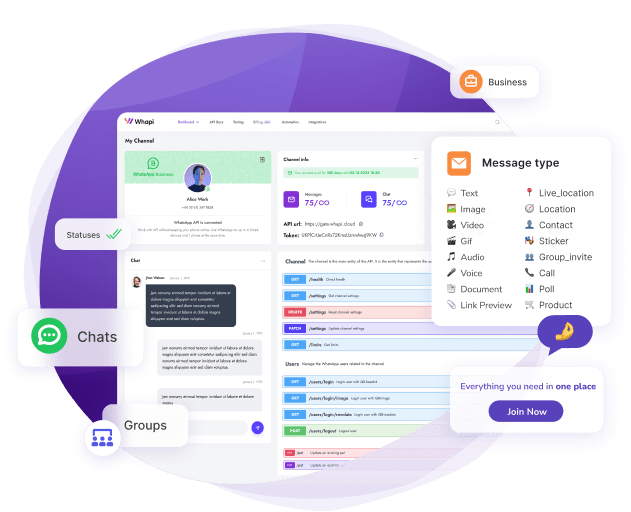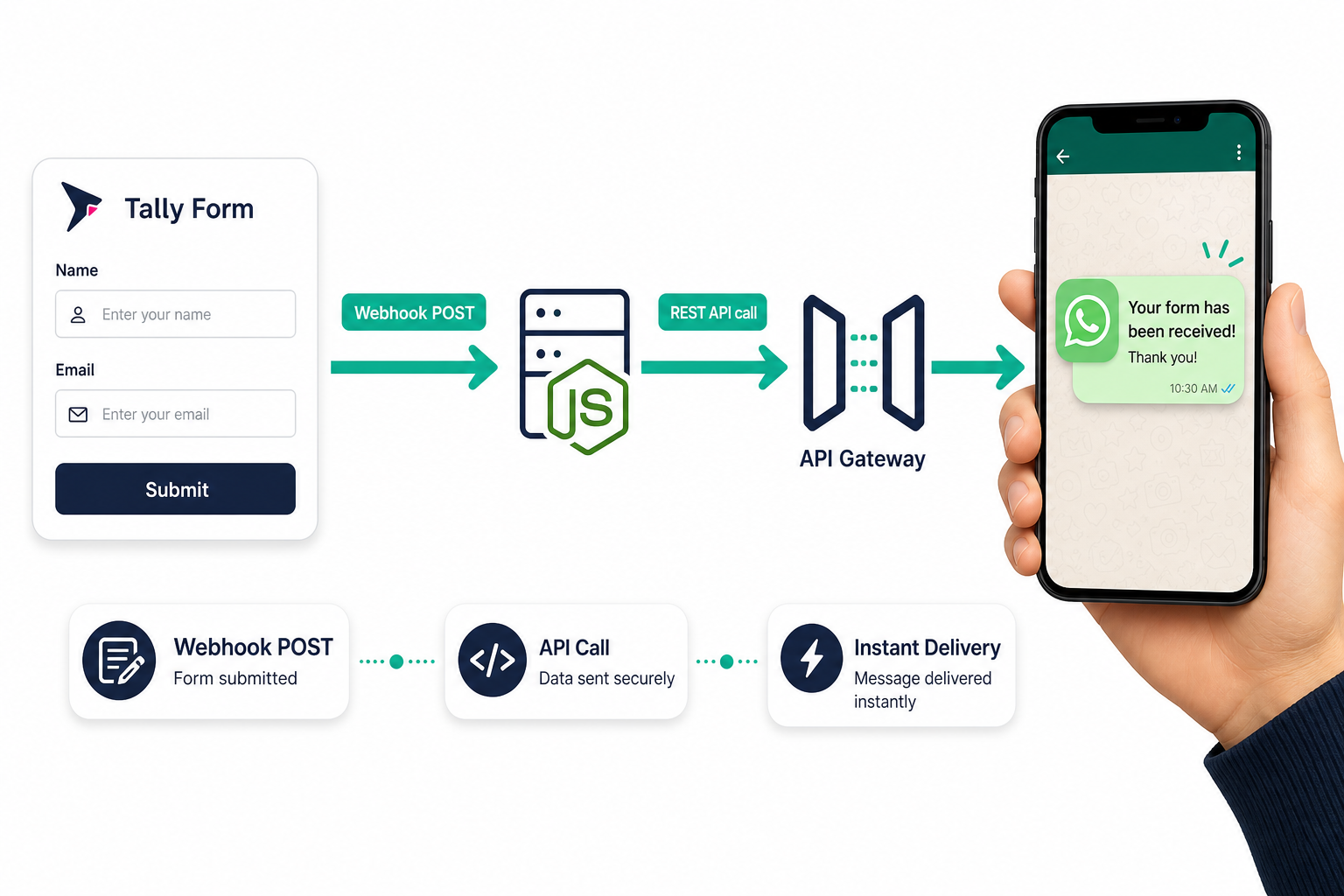
TL;DR: Tally's free plan includes native webhooks -- use them to POST form data directly to Whapi.Cloud's REST API and deliver a WhatsApp notification within seconds of each submission. No Zapier account required. You need a deployed receiver (Node.js or any HTTP server), a Whapi.Cloud API token, and a connected WhatsApp number. Setup takes under 30 minutes. Prefer no-code? Skip to the Zapier and Make section -- but per-task pricing adds up quickly past the free tier.
Tally's free native webhook is enough to deliver a WhatsApp notification the moment a form is submitted. No Zapier account, no paid automation tier. One direct REST call to Whapi.Cloud is all it takes. This guide walks through the exact payload structure Tally sends, a working Node.js receiver, and the error handling that keeps notifications from dropping silently under load.
What "Zero-Middleware" Means for This Integration
Zero-middleware means your webhook receiver calls Whapi.Cloud directly -- form data travels in one HTTP hop from Tally to WhatsApp, with no third-party platform sitting in between.
A direct REST call also reduces delivery latency: a Tally submission typically arrives as a WhatsApp message in under two seconds, compared to the 3--15 second round-trip a multi-hop automation pipeline adds.
The trade-off is real but small: you write a minimal HTTP server or serverless function, but you remove per-task billing and the external dependency. Three steps, one data path: Tally fires the webhook, your receiver calls Whapi.Cloud, WhatsApp delivers the message -- no paid intermediary at any step.
What You Need Before Starting
Three prerequisites: a Whapi.Cloud account with a connected WhatsApp number, a public HTTPS endpoint for your receiver, and a Tally form on any plan.
-
Whapi.Cloud account with a connected number: Register at panel.whapi.cloud/register, connect a WhatsApp number by scanning a QR code, and copy your API token from the dashboard. The QR scan takes about two minutes -- unlike official API onboarding, no Meta business verification is required.
-
A public HTTPS endpoint: Tally requires a reachable URL to POST webhook payloads. Any cloud server, VPS, or serverless function works. For local testing, use ngrok or webhook.site to inspect payloads before deploying.
-
A Tally form: Any form on any Tally plan; webhooks are available on the free tier with no upgrade required.
How Tally Sends Form Data: Understanding the Webhook Payload
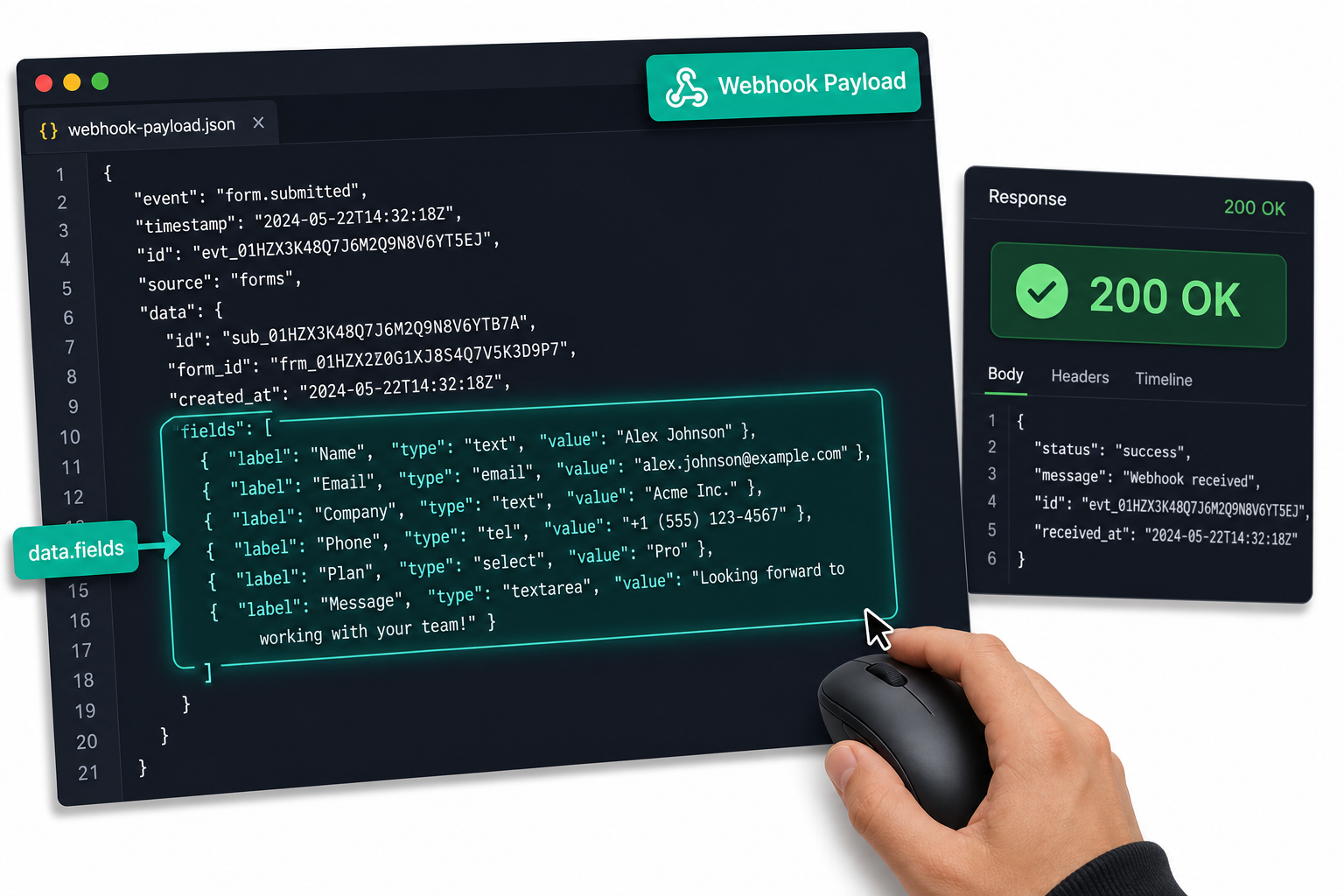
When a form is submitted, Tally sends a single JSON object to your webhook URL via HTTP POST. The critical part is data.fields: an array where each object holds the field label, a unique key, the field type, and the submitted value.
Here is what a typical Tally webhook payload looks like for a contact form with three fields:
{
  "eventId": "3c679025-76b0-4a17-a4e5-f54ac2c5d7e0",
  "eventType": "FORM_RESPONSE",
  "createdAt": "2026-05-04T08:30:00.000Z",
  "data": {
    "responseId": "mApVL4",
    "submissionId": "mApVL4",
    "formId": "wkaBcd",
    "formName": "Contact Form",
    "createdAt": "2026-05-04T08:30:00.000Z",
    "fields": [
      {
        "key": "question_mLpNx3",
        "label": "Full Name",
        "type": "INPUT_TEXT",
        "value": "Jane Smith"
      },
      {
        "key": "question_Bq7kL2",
        "label": "Email",
        "type": "INPUT_EMAIL",
        "value": "[email protected]"
      },
      {
        "key": "question_Kp2mQ9",
        "label": "Phone",
        "type": "INPUT_PHONE_NUMBER",
        "value": "+1 415 555 1234"
      }
    ]
  }
}
Each field's key is a unique form-specific ID (e.g., question_mLpNx3) that changes per form. Use the label field for lookup in your receiver code unless you hardcode specific keys after inspecting your own form's payload.
Label-based lookup is more readable and survives Tally form edits. Hardcoded keys are slightly faster but break if you rename a field. For a lead notification receiver, label lookup is the practical default.
Mapping Tally Fields to a WhatsApp Message
The simplest pattern: iterate data.fields, find by label, and interpolate the value into a message template string. Multi-select fields and file upload fields return arrays -- handle them separately if your form includes those types. Mapping Tally field labels to WhatsApp message variables is what enables personalized lead alerts at scale: each submission becomes a named notification rather than a generic ping.
Step-by-Step: Connect Tally Forms to WhatsApp via Whapi.Cloud
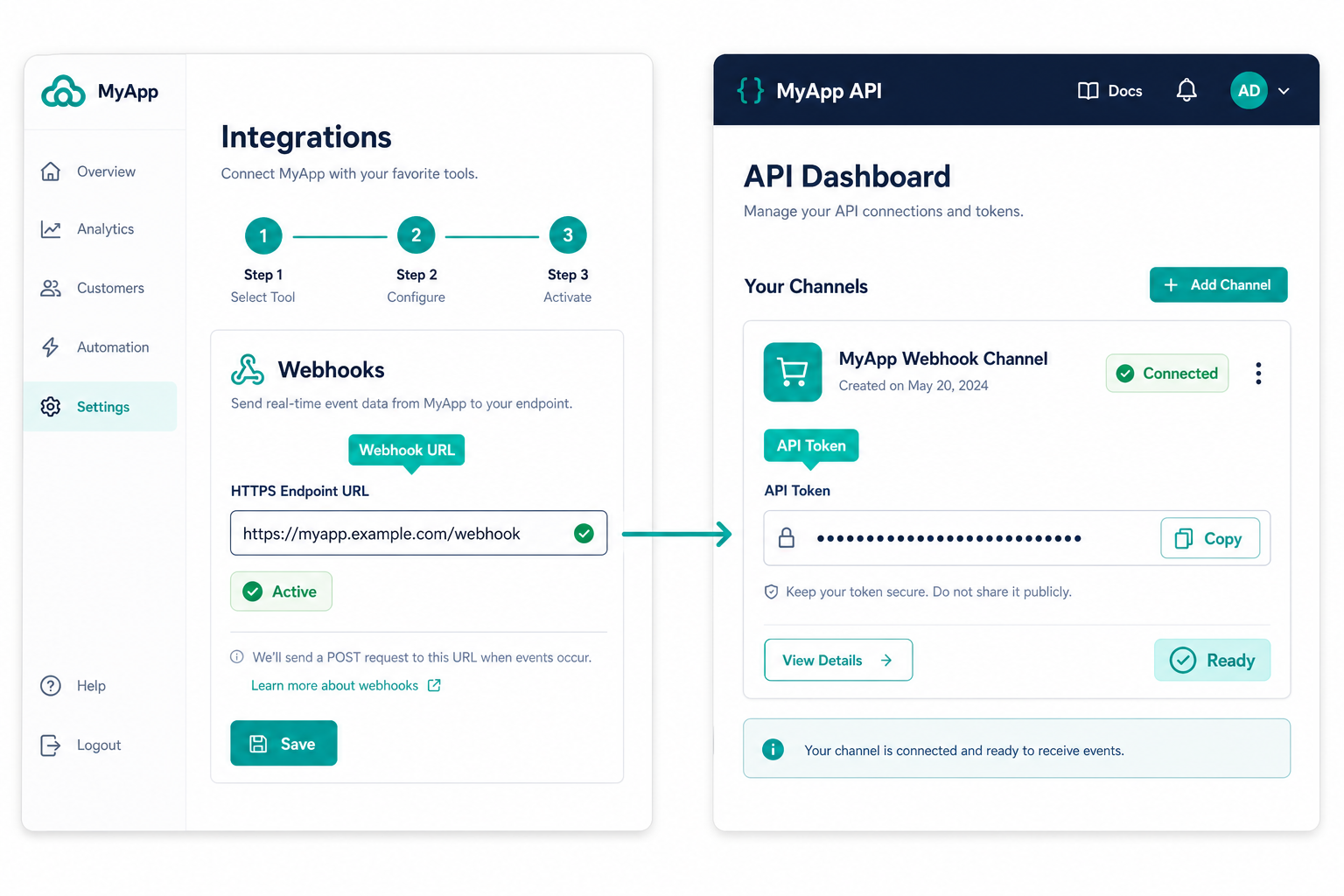
The integration has two moving parts: Whapi.Cloud handles the WhatsApp delivery, and Tally triggers the data push. Configure Whapi.Cloud first so the webhook URL is ready when you open Tally settings.
Tally's webhook is available on the free plan -- no paid upgrade is required to configure a custom webhook URL.
Step 1: Connect Your WhatsApp Number to Whapi.Cloud
Log in to the Whapi.Cloud dashboard, create a new channel, and scan the QR code with the WhatsApp account that will send the notifications. Once connected, copy the API token shown on the channel page. This token goes in the Authorization: Bearer header of every API request.
Store the token in an environment variable (WHAPI_TOKEN) rather than hardcoding it. The dashboard lets you regenerate the token at any time without reconnecting the number.
Step 2: Deploy Your Webhook Receiver
Deploy the Node.js receiver from the code section below to any server or serverless platform with a public HTTPS URL. The receiver must accept POST requests on the configured path and return a 200 response within a few seconds -- Tally considers any non-2xx response a delivery failure. For quick testing, point the webhook at webhook.site or use ngrok http 3000 to expose a local server before deploying.
Step 3: Configure the Webhook URL in Tally
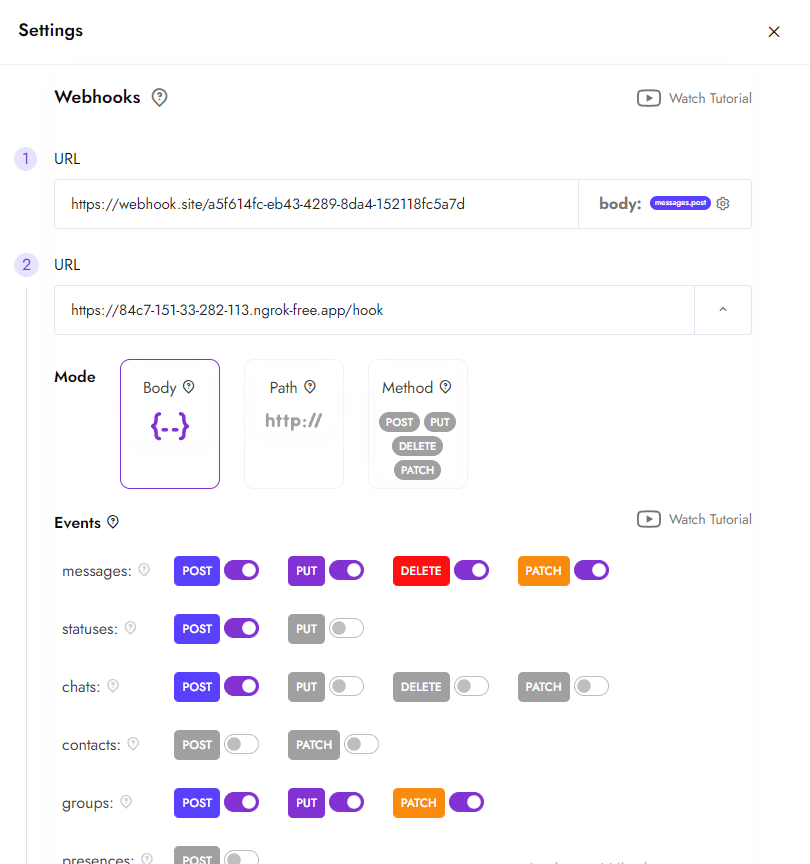
Open your Tally form, go to Integrations → Webhooks, and paste your receiver's HTTPS URL. Tally sends a POST request to this URL on every form submission. No authentication header configuration is needed on the Tally side -- the security lives in your receiver, which accepts requests and calls Whapi.Cloud with your Bearer token.
If your receiver is behind a firewall or IP allowlist, note that Tally does not publish a static outbound IP range. Use an open public endpoint or a dedicated ingress proxy for production deployments.
Step 4: Test with a Real Submission
Click Send test submission in Tally's Webhooks panel. Your receiver will log the incoming payload. Confirm data.fields contains the labels your code expects, then verify the WhatsApp message arrives on the target number. If the message does not arrive, check the receiver logs for the Whapi.Cloud response status before adjusting anything else.
Webhook Receiver Code: Node.js Implementation
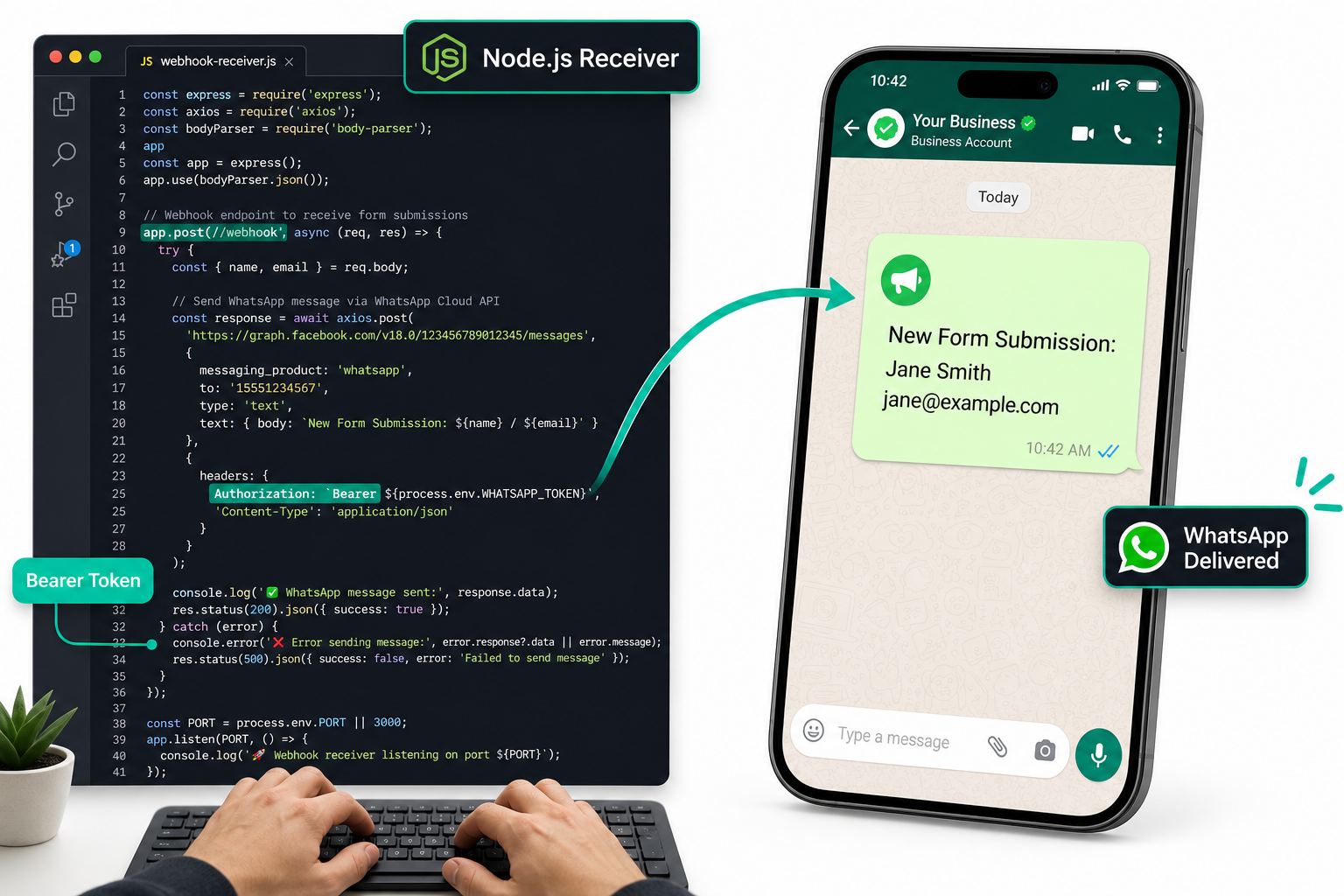
The receiver below does exactly one job: extract the relevant fields from Tally's payload and send a formatted WhatsApp message via Whapi.Cloud's /messages/text endpoint. It uses Node.js with Express, under 50 lines, no SDK required.
Before running, install the dependencies: npm install express node-fetch. Node 18+ has native fetch built in, so you can drop the node-fetch import if you are on a recent runtime.
const express = require('express');
const fetch   = require('node-fetch'); // omit if Node 18+ (native fetch available)

const app = express();
app.use(express.json());

const WHAPI_TOKEN  = process.env.WHAPI_TOKEN;   // Whapi.Cloud API token from dashboard
const NOTIFY_PHONE = process.env.NOTIFY_PHONE;  // Recipient number, e.g. 14155551234

// Find a submitted value by field label inside Tally's fields array
function getField(fields, label) {
  const found = fields.find(f => f.label === label);
  return found ? String(found.value ?? '') : 'N/A';
}

app.post('/webhook', async (req, res) => {
  const fields = req.body?.data?.fields ?? [];

  const name  = getField(fields, 'Full Name');
  const email = getField(fields, 'Email');
  const phone = getField(fields, 'Phone');

  // Compose the WhatsApp notification body
  const messageBody = `New Tally submission:\n\nName: ${name}\nEmail: ${email}\nPhone: ${phone}`;

  let whapiStatus = 'sent';

  try {
    const response = await fetch('https://gate.whapi.cloud/messages/text', {
      method: 'POST',
      headers: {
        'Authorization': `Bearer ${WHAPI_TOKEN}`,
        'Content-Type': 'application/json'
      },
      body: JSON.stringify({
        to:   NOTIFY_PHONE,  // phone number with country code, no leading +
        body: messageBody
      })
    });

    if (!response.ok) {
      const err = await response.json().catch(() => ({}));
      console.error('[whapi] error', response.status, err);
      whapiStatus = 'failed';
      // Still return 200 to Tally; Whapi errors do not benefit from Tally retrying
    }
  } catch (networkErr) {
    console.error('[whapi] network error', networkErr.message);
    whapiStatus = 'failed';
  }

  res.json({ received: true, whatsapp: whapiStatus });
});

app.listen(process.env.PORT || 3000, () =>
  console.log('Webhook receiver listening')
);
The Authorization: Bearer header is the only authentication Whapi.Cloud requires -- no SDK installation, no OAuth flow, no library to configure. The API accepts plain JSON and returns plain JSON.
The to field accepts the recipient's phone number with country code and no leading plus sign (e.g., 14155551234 for a US number). The WhatsApp Chat ID format ([email protected]) also works. The API accepts both.
For a quick cURL test before deploying the full receiver, send a message manually to verify the token and number are correct:
curl -X POST https://gate.whapi.cloud/messages/text \
  -H "Authorization: Bearer YOUR_WHAPI_TOKEN" \
  -H "Content-Type: application/json" \
  -d '{"to": "14155551234", "body": "Test from Tally webhook setup"}'
A successful response returns a JSON object with a message field containing the sent message ID. If this test works, your token and number configuration are correct. Move on to deploying the full receiver.
Error Handling: What Happens When the Whapi.Cloud Request Fails
A failed HTTP request to Whapi.Cloud does not retry automatically. If your receiver sends a 200 back to Tally before confirming the WhatsApp call succeeded, the notification drops with no trace in Tally's logs.
Return 200 to Tally only after the Whapi.Cloud call completes -- log failures locally and re-queue for retry rather than depending on Tally to resend.
The three error codes you will hit in practice and what they mean:
| HTTP Status | Cause | Fix |
401 Unauthorized |
API token is missing, expired, or copied incorrectly | Regenerate the token in the Whapi.Cloud dashboard and update WHAPI_TOKEN |
400 Bad Request |
Malformed payload: usually a missing to value or incorrect phone number format |
Log req.body and verify the to field contains only digits with country code |
5xx Server Error |
Transient Whapi.Cloud or WhatsApp network issue | Implement exponential backoff retry; most transient errors resolve within seconds |
One scenario that catches teams running high-volume lead forms: sending hundreds of identical messages in rapid succession may trigger WhatsApp's server-side spam detection. This is not a Whapi.Cloud API limit -- Whapi.Cloud production plans do not enforce per-message rate caps. The throttle comes from WhatsApp's infrastructure monitoring volume spikes. For burst scenarios, add a short delay between sends or queue submissions before processing.
No-Code Alternatives: When to Use Zapier, Make, or n8n Instead
For teams without a server to deploy, Zapier, Make, and n8n connect Tally to WhatsApp without backend code -- at the cost of per-task billing that grows with every submission.
-
Zapier: Easiest GUI, largest library of pre-built connectors. Free tier handles 100 tasks/month, sufficient only for very low-volume testing. Paid tiers bill per zap (task), so every form submission consumes one task credit. Choose Zapier if the team has zero technical capacity and volume stays under a few hundred submissions per month.
-
Make (formerly Integromat): More powerful than Zapier for multi-step flows; free tier allows 1,000 operations/month. Pricing scales per operation. Good middle ground for non-technical teams needing conditional logic without writing code.
-
n8n: Open-source and self-hostable. Unlimited workflows on self-hosted instances, with no per-operation billing. The right choice for cost-conscious technical teams who want automation flexibility without recurring task fees. See the Whapi.Cloud n8n integration guide for a step-by-step connection walkthrough.
Non-technical teams use Zapier or Make; developers use Tally's native webhook with a direct Whapi.Cloud REST call. The deciding factor is not technical complexity -- it is how predictable your submission volume is and whether per-task billing fits your budget.
Cost Comparison: Direct API vs. Middleware Platforms
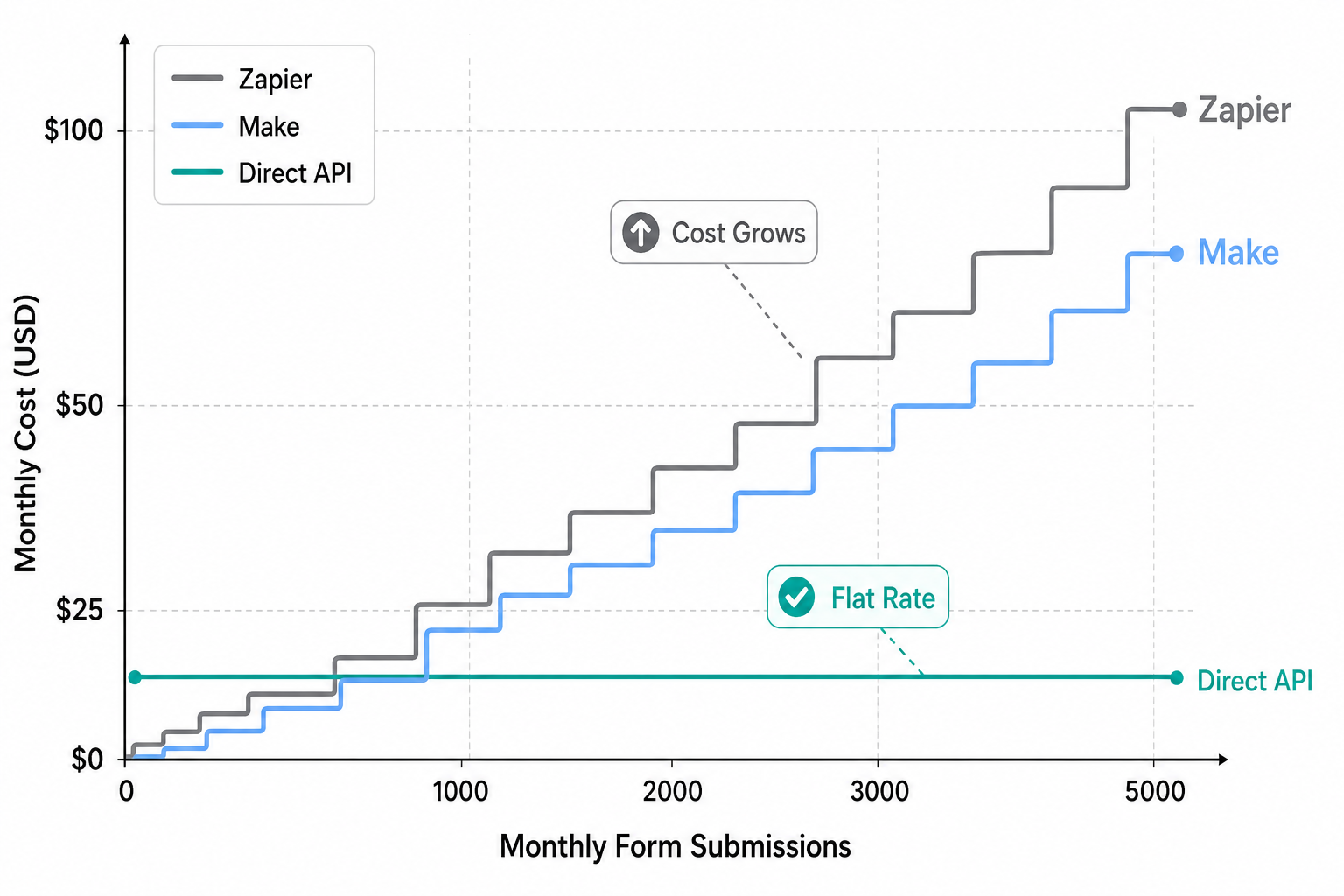
Zapier and Make charge per task or operation: every form submission that triggers a WhatsApp notification consumes one billable unit. Whapi.Cloud charges per connected WhatsApp number per month, not per message.
Whapi.Cloud's flat monthly rate per number means 5,000 form-triggered messages cost the same as 50 -- middleware platforms bill linearly with every submission.
| Method | Free Tier | Pricing Model (Paid) | Code Required | Best For |
| Zapier | 100 tasks/month | Per task (zap); cost grows with submissions | No | Non-technical teams, low volume |
| Make | 1,000 ops/month | Per operation; cost grows with submissions | No | Multi-step flows, no-code preference |
| n8n (self-hosted) | Unlimited | Server costs only (fixed infrastructure) | Partial (config-based) | Technical teams, cost-sensitive |
| Whapi.Cloud (direct) | 5 conversations/month (Sandbox) | Flat monthly per WhatsApp number (volume-independent) | Yes (~50 lines) | Developers, predictable cost, high volume |
The pricing model difference matters most when submission volume is unpredictable. A product launch or viral campaign can spike form submissions 10x overnight. With per-task middleware, that spike multiplies your automation bill. With Whapi.Cloud's per-number subscription, the same spike costs nothing extra.
Start with the free Whapi.Cloud Sandbox to test the full flow before connecting a production WhatsApp number. The Sandbox is permanently free with no time limit -- use it to verify your receiver code, field mapping, and error handling before going live. See the full Whapi.Cloud API documentation for request/response details on all endpoints.
Tally webhooks work with any HTTP-capable language or runtime. The Node.js example here is a starting point; the same logic applies to Python (with requests or httpx), Go, PHP, or a Cloudflare Worker. No WhatsApp platform lock-in means you can swap the receiver language without changing any Tally or Whapi.Cloud configuration.