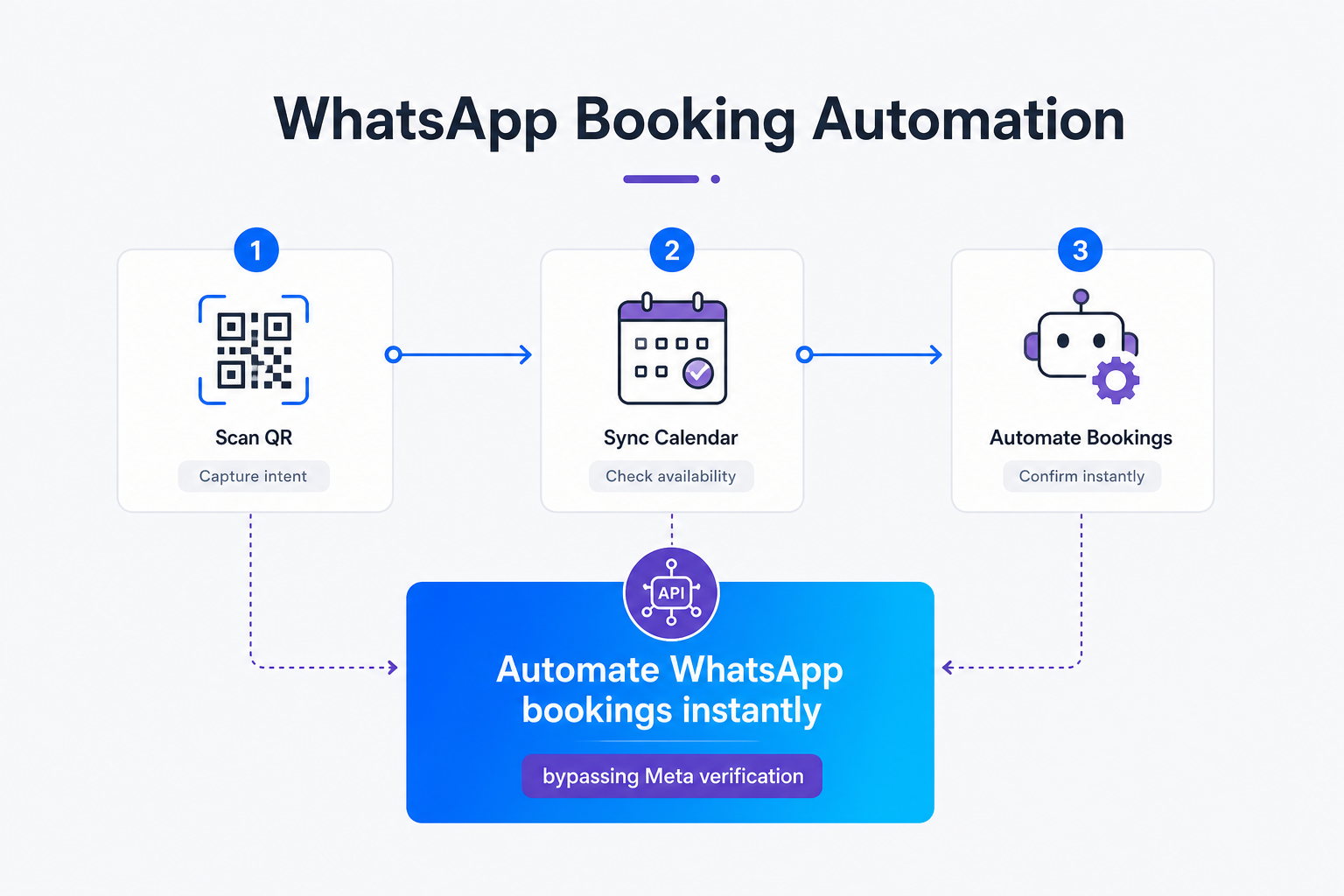
TL;DR: Local service businesses lose up to 42% of potential bookings because clients cannot schedule appointments outside standard business hours. Instead of waiting days for Meta Business Verification, you can scan a QR code to connect Whapi.Cloud in under two minutes. This guide provides a 5-step checklist and a strict state machine pattern to automate your calendar bookings 24/7, reducing front-desk phone interruptions and slashing appointment no-shows by up to 60%.
Why Meta Business Verification Blocks Small Business Automation
Bypassing Meta's verification allows small business owners to secure easy setup for a fully automated, stateful WhatsApp booking assistant. In our practice, we've seen small service operators lose up to 42% of potential bookings because clients cannot schedule appointments outside standard hours.
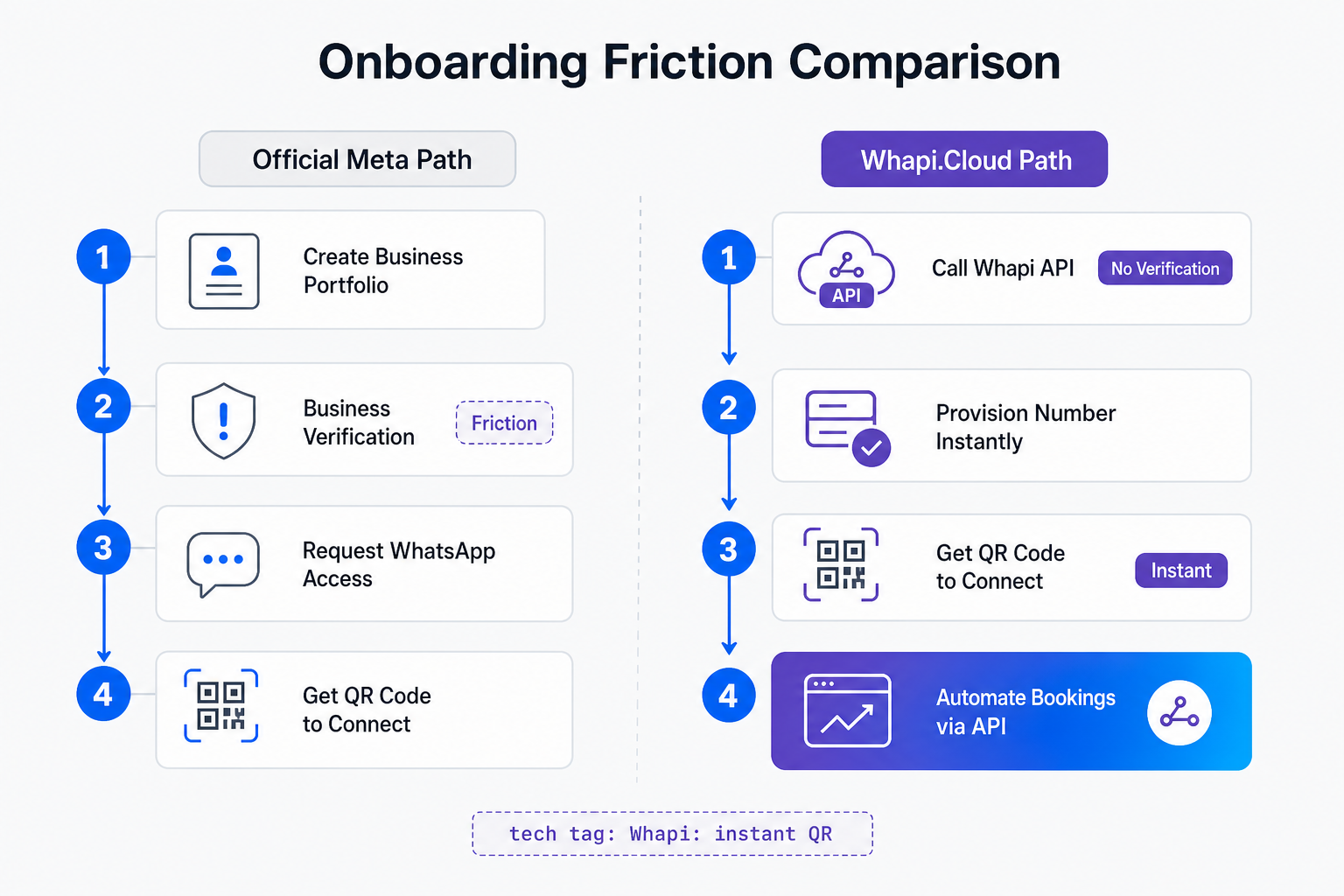
The first mistake most operators make is assuming they must go through Meta's official BSP onboarding. They spend hours filling out forms only to get rejected because their local business registration doesn't match their Facebook page name exactly. Meta Business Verification requires submitting corporate tax documents and waiting days for manual approval before you can send a single message. In Whapi.Cloud, you bypass this process entirely and start messaging instantly, as Whapi.Cloud connects via web-session sockets using your existing WhatsApp number.
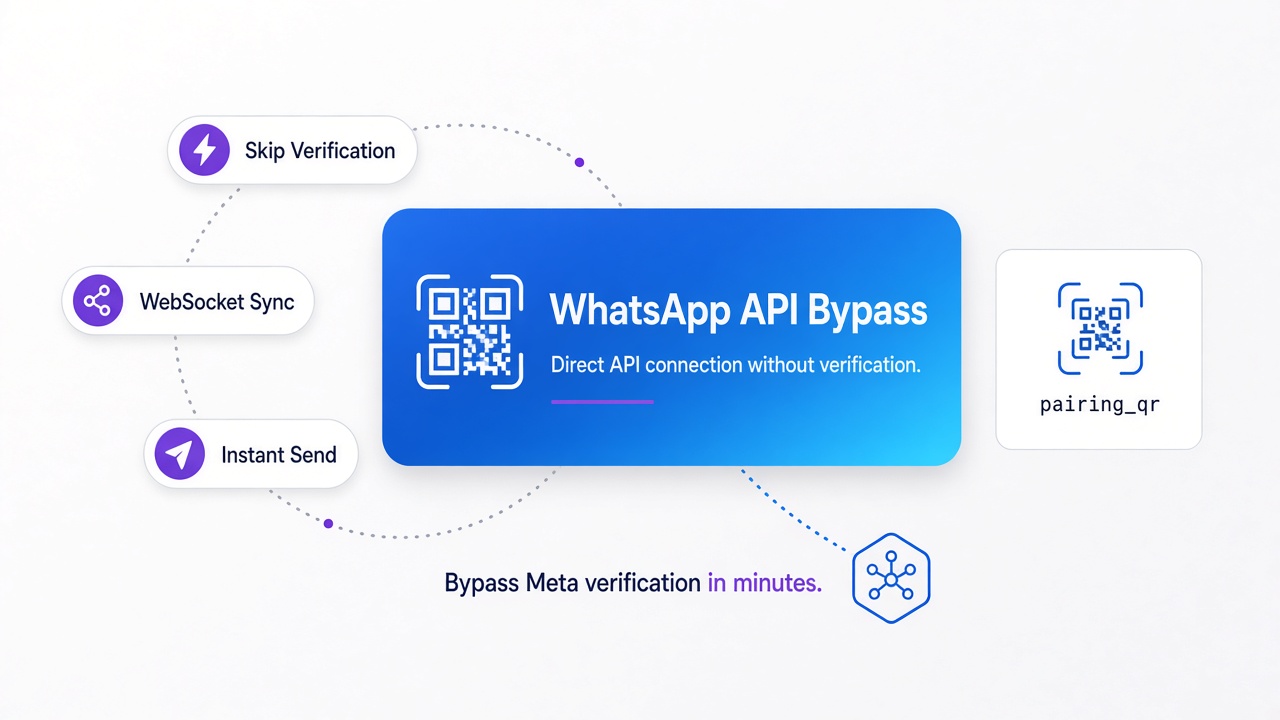
In the official WhatsApp Business API, you must set up a Facebook Business Manager account and link your phone number through a complex BSP onboarding flow. In Whapi.Cloud, you connect your number in seconds by scanning a QR code, since our gateway operates on web-session sockets without requiring Meta platform registration. Bypassing Meta's verification via Whapi.Cloud's instant QR-pairing allows small business owners to secure easy setup for a fully automated, stateful WhatsApp booking assistant in under an hour, capturing 42% more off-hours appointments and driving trial registrations.
By routing routine service bookings directly to WhatsApp, you reduce front-desk phone interruptions, allowing your staff to focus on the clients currently in the building. Let us look at how you can deploy this zero-friction scheduling system in under an hour.
The 5-Step Checklist to Launch Your WhatsApp Booking System
Launching an automated booking flow requires connecting your number, syncing your calendar, and deploying a stateful webhook handler. This checklist ensures a zero-friction setup in under an hour, using your existing business number.
You can pair any existing WhatsApp Business Account in under two minutes by scanning a QR code. This instant connection bypasses the Facebook Business Manager entirely and activates your API channel immediately.
Follow these five steps to configure your automated scheduling pipeline:
Step 1: Connect your number via Whapi.Cloud
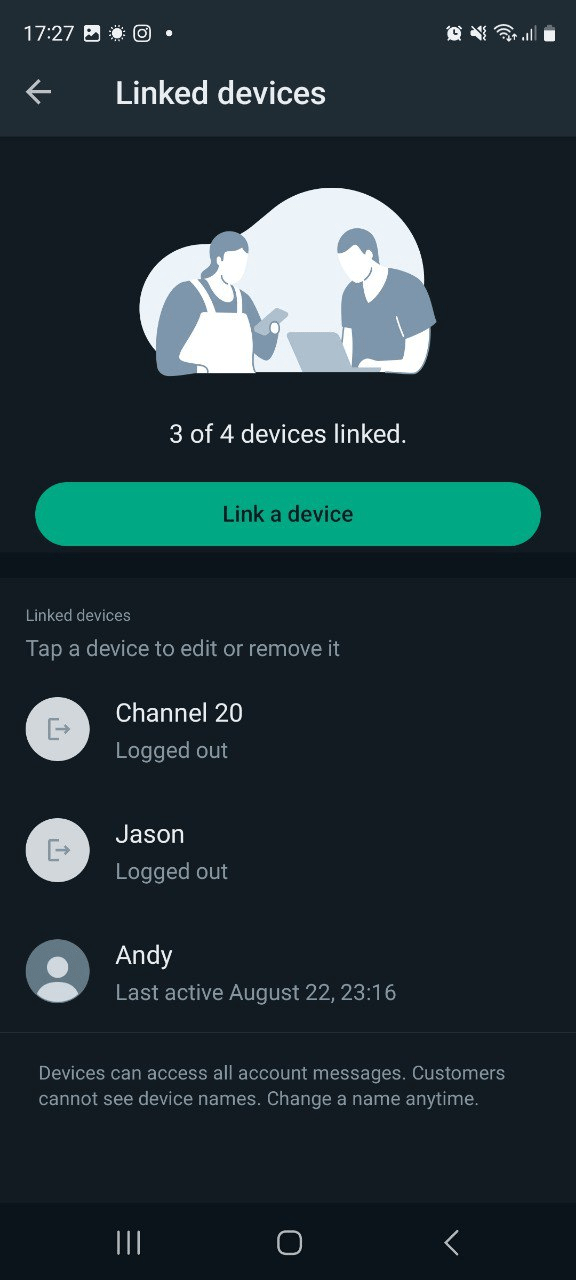
To begin, register for a free account at the Whapi.Cloud registration page. Once logged in, you will be presented with a QR code in your dashboard. Scan this QR code using your physical phone's WhatsApp application, exactly as you would connect WhatsApp Web. To do this, open WhatsApp on your phone, tap Settings, select Linked Devices, and choose Link a Device to reveal the camera scanner. This links your account via web-session sockets instantly, giving your backend full programmatic access to send and receive messages without waiting for Meta platform approvals.
Step 2: Sync your target calendar
Your booking bot must interact with a single source of truth for availability. Integrate your backend with Google Calendar API or your local booking database. When a client requests a booking, your system must fetch available slots, applying a 15-minute buffer between appointments to prevent overlaps. Ensure that your calendar queries are restricted to your business's operational hours, and filter out public holidays or trainer vacation days automatically.
Step 3: Verify phone numbers
Before initiating a booking flow or scheduling automated reminders, verify that the customer's phone number is registered on WhatsApp. Use Whapi.Cloud's checkphones endpoint to perform a real-time reachability check. This ensures that you do not waste database resources or trigger API timeouts trying to send messages to invalid numbers or landlines, maintaining high delivery rates across your customer database.
// POST https://gate.whapi.cloud/contacts/checkphones
const verifyWhatsAppNumber = async (phoneNumber) => {
  const url = 'https://gate.whapi.cloud/contacts/checkphones';
  const payload = {
    phones: [phoneNumber]
  };

  const res = await fetch(url, {
    method: 'POST',
    headers: {
      'Content-Type': 'application/json',
      'Authorization': `Bearer \${process.env.WHAPI_TOKEN}`
    },
    body: JSON.stringify(payload)
  });

  if (!res.ok) {
    throw new Error(`Whapi checkphones error: \${res.status}`);
  }

  const data = await res.json();
  // Returns array of objects with status: "valid" or "invalid"
  return data[0]?.status === 'valid';
};
Step 4: Configure your webhook endpoint
To receive messages from your clients in real time, you must configure your webhook URL. Access your Whapi.Cloud channel settings and register your server's endpoint (e.g., https://yourdomain.com/whatsapp-webhook). Subscribe to the messages event. This ensures that whenever a client sends a message, Whapi.Cloud delivers a real-time webhook payload to your webhook handler within milliseconds, allowing your bot to respond instantly.
Step 5: Deploy the state machine
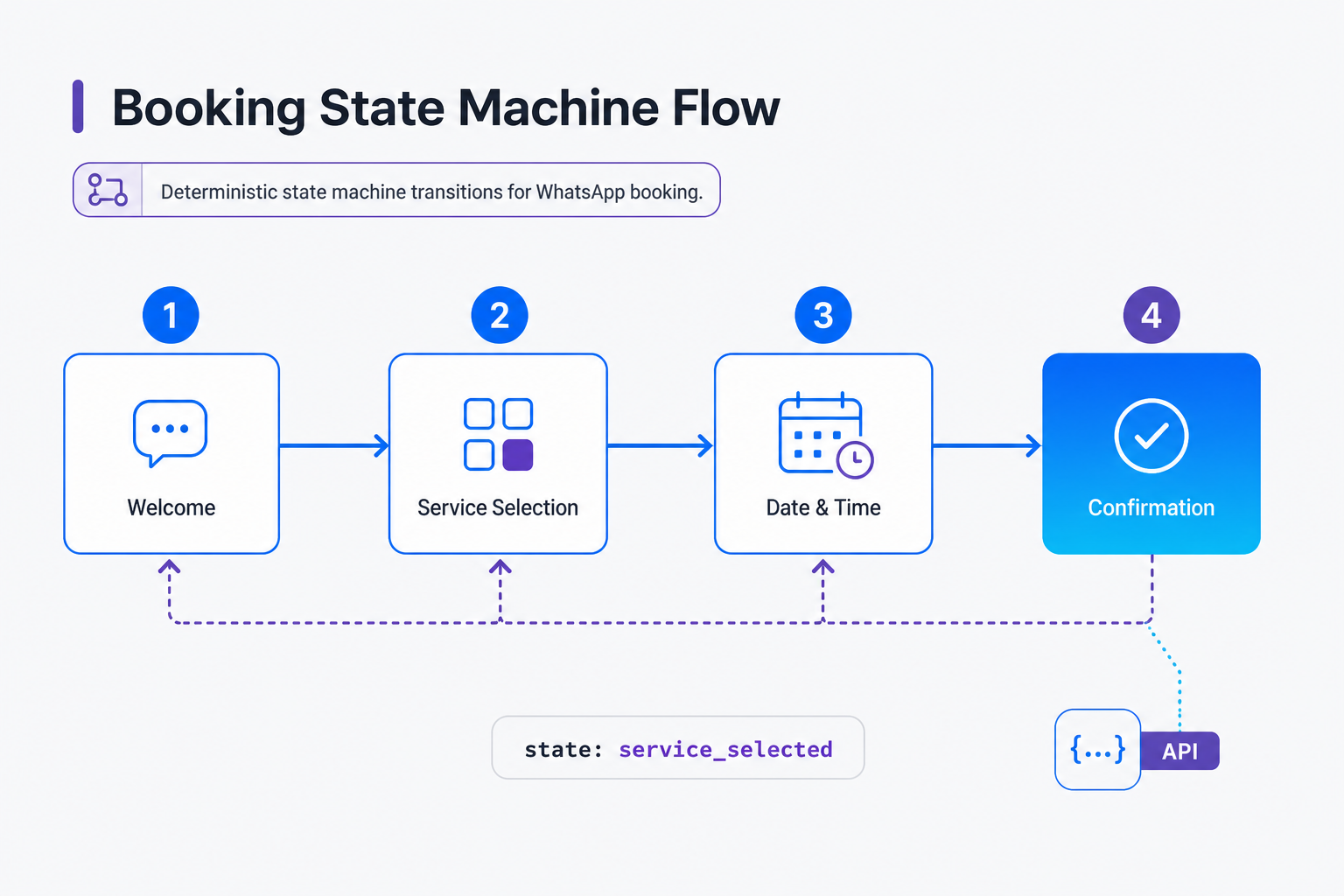
The final step is to deploy a stateful backend to track where each user is in the booking flow. Create a database schema that stores the client's phone number, their current state (e.g., welcome, service_selected, date_selected), and temporary booking details. This stateful tracking ensures that your bot knows exactly what information to expect next, preventing conversational drop-offs and double-bookings.
Whapi.Cloud's free sandbox allows up to 150 messages per day and 1,000 API requests per month, making it perfect for testing your booking flow before upgrading to a production plan. Let us examine how to structure the conversation logic so your bot never gets confused.
Conversation State: Why Your Booking Bot Needs a Stateful UI
Stateless bots confuse users and lead to double-bookings. Tracking the conversation state ensures a deterministic flow from service selection to final confirmation, even when users send unexpected replies.
WhatsApp booking automation requires a stateful conversation UI rather than a simple message responder. If your bot only replies to keywords, a user asking "Do you have parking?" mid-booking will crash the flow or force them to start over.
If you want to build a reliable WhatsApp chatbot, you must map user inputs from welcome message to service, date, time selection, and final confirmation. We recommend implementing the state transition guard pattern in your database. This pattern validates that the incoming message corresponds to the expected next step in the booking sequence, storing the user's progress under their phone number key.
In our experience, teams that rely on simple keyword routers face constant user drop-offs when clients ask off-topic questions mid-booking. You might try using a stateless keyword router first, where a message containing "book" triggers a static reply. However, this rejected alternative fails because it cannot handle out-of-order inputs. If a client types "haircut" when the bot is waiting for a date, a stateless system will either throw an unhandled exception or book the wrong slot.
Additionally, your state machine must handle variable service duration constraints. A 30-minute haircut requires a different calendar validation than a 3-hour hair coloring. Your backend must query Google Calendar for a block of time matching the specific service duration, rather than assuming all appointments fit into standard 30-minute slots. If a stylist is only free for 60 minutes, the system must automatically hide the 3-hour hair coloring option from the available slots, preventing overbooking.
// Validate slot availability with dynamic duration and 15-minute buffer
const isSlotAvailable = async (calendar, startTime, durationMinutes) => {
  const bufferMinutes = 15;
  const start = new Date(startTime);
  const end = new Date(start.getTime() + (durationMinutes + bufferMinutes) * 60000);

  // Query Google Calendar freebusy or events list for overlaps
  const response = await calendar.events.list({
    calendarId: 'primary',
    timeMin: start.toISOString(),
    timeMax: end.toISOString(),
    singleEvents: true
  });

  // If any events overlap, the slot is unavailable
  return response.data.items.length === 0;
};
Technical Best Practices: Webhook Idempotency and Timezones
Handling network retries and timezone offsets is critical for database integrity. Webhook idempotency and UTC storage prevent duplicate bookings and scheduling errors in production.
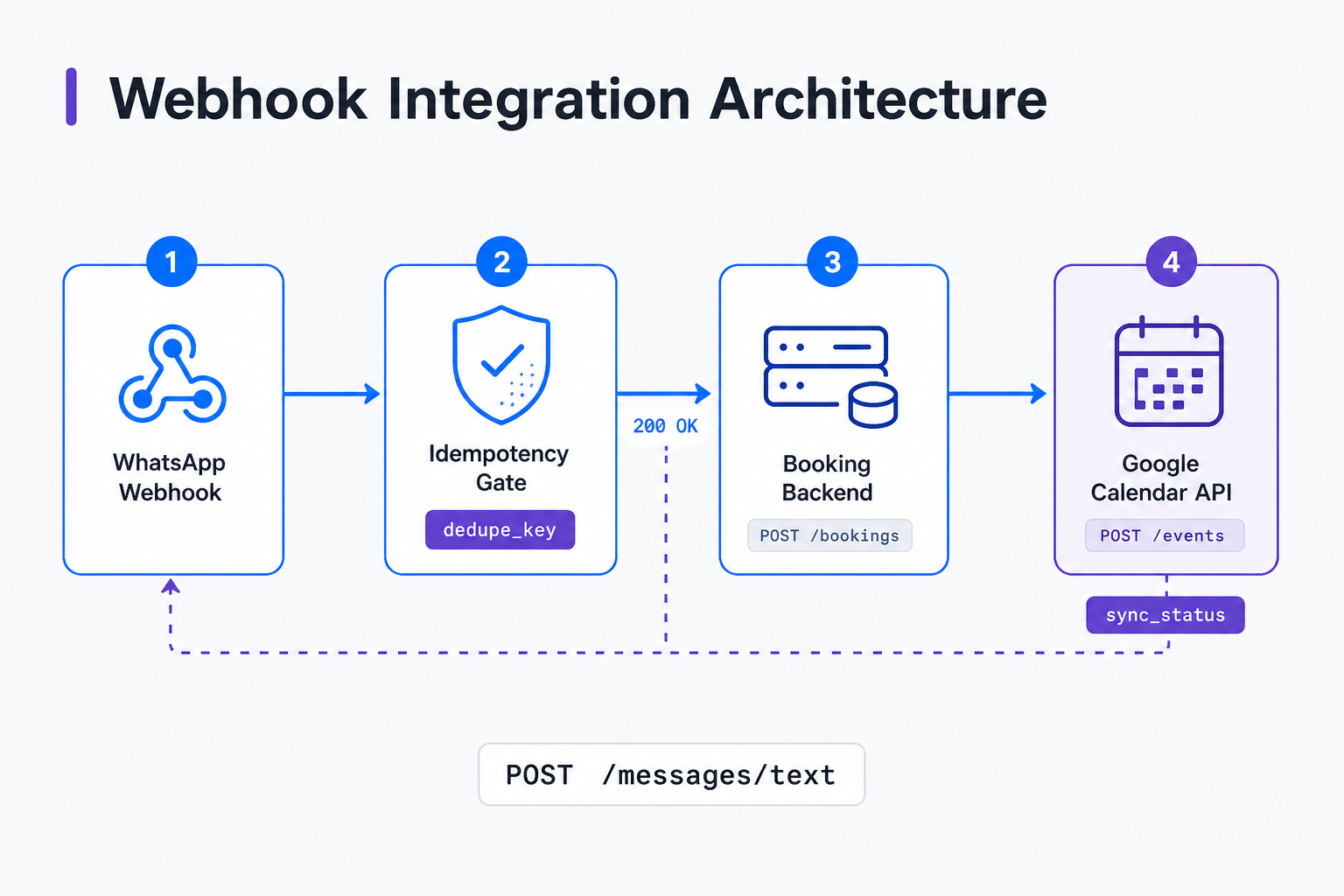
Strict webhook idempotency prevents duplicate bookings caused by automatic Meta retry events. If your backend takes longer than 5 seconds to process a booking and sync with Google Calendar, WhatsApp's servers will assume a timeout and retry the delivery, triggering duplicate database entries unless you implement an idempotency gate.
Another common pitfall is multi-timezone scheduling. For local solo-operators, clients often book appointments from different timezones. Your backend must convert the client's selected local time to UTC before checking calendar availability, and store the appointment in UTC while sending the confirmation in the business's local timezone.
To implement this safely, your webhook handler must check incoming message IDs against a fast cache like Redis before processing. Below is a functional Node.js WhatsApp bot example demonstrating how to send a booking confirmation using the Whapi.Cloud REST API:
// POST https://gate.whapi.cloud/messages/text
const sendBookingConfirmation = async (recipientPhone, appointmentDetails) => {
  const url = 'https://gate.whapi.cloud/messages/text';
  const payload = {
    to: `${recipientPhone}@s.whatsapp.net`,
    body: `Your appointment is confirmed!\n\n📅 Date: ${appointmentDetails.date}\n🕒 Time: ${appointmentDetails.time}\n💇 Service: ${appointmentDetails.service}`
  };

  const res = await fetch(url, {
    method: 'POST',
    headers: {
      'Content-Type': 'application/json',
      'Authorization': `Bearer ${process.env.WHAPI_TOKEN}`
    },
    body: JSON.stringify(payload)
  });

  if (!res.ok) {
    throw new Error(`Whapi API error: ${res.status} - ${res.statusText}`);
  }

  return await res.json();
};
To handle duplicate webhooks from network retries, wrap your handler in an idempotency check using Redis. This ensures that even if WhatsApp retries the webhook delivery three times, your database only writes the booking once:
// Webhook handler with Redis idempotency gate
app.post('/whatsapp-webhook', async (req, res) => {
  const { id, messages } = req.body;
  if (!messages || messages.length === 0) {
    return res.sendStatus(200);
  }

  const messageId = messages[0].id;

  const isDuplicate = await redis.get(`webhook:${messageId}`);
  if (isDuplicate) {
    return res.status(200).send('Duplicate event ignored');
  }

  // Lock the message ID for 24 hours
  await redis.set(`webhook:${messageId}`, 'processed', 'EX', 86400);

  // Proceed with state machine and calendar sync...
  res.sendStatus(200);
});
Implementing these two safeguards prevents scheduling conflicts and ensures your system remains synchronized. Let us look at how to handle common conversational edge cases to keep your system robust.
Troubleshooting Common WhatsApp Booking Edge Cases
Automated booking systems must handle real-world edge cases like cancellations, out-of-bounds requests, and human escalation. Resolving these scenarios prevents calendar corruption and maintains client trust.
A robust booking bot must gracefully handle user cancellations and rescheduling requests. If a client replies with "cancel" or "I can't make it," your state machine should transition to a cancellation state, query the database for the active booking ID, remove it from Google Calendar, and send a confirmation message. This frees up the time slot instantly for other clients, maximizing your business's capacity utilization.
Another common edge case is handling out-of-bounds inputs. If a client requests an appointment on "Sunday at 3 AM" or "yesterday," your backend must validate the input against your business hours before querying the calendar. Instead of crashing, the bot should reply with a polite message: "We are open Monday to Saturday from 9 AM to 8 PM. Please select a valid time slot." This keeps the user within the deterministic booking loop without requiring manual intervention.
Finally, always implement a human escalation fallback. If the bot fails to understand the user's input twice in a row, or if the user explicitly types "help" or "talk to a human," the state machine must pause the automated flow and notify a real receptionist. This ensures that complex queries are handled gracefully, preserving customer satisfaction while automating 90% of routine bookings. If you encounter unexpected behavior, reach out to the Whapi.Cloud support team via the chat widget on whapi.cloud -- the team actively helps customers resolve production issues.
How Automated Reminders Slash No-Shows Across Industries
Automated WhatsApp reminders sent 24 hours and 2 hours before an appointment reduce no-shows by 35% to 60%. WhatsApp achieves a 98% open rate, making booking reminders far superior to email.
Sending automated 24h and 2h WhatsApp reminders directly slashes appointment no-shows by up to 60% across local service industries. In the official WhatsApp Business API, you are charged per-delivered-message fees based on template categories (utility, marketing, authentication) with additional BSP markups. In Whapi.Cloud, we offer a flat subscription model with no per-message fees, as our web-session socket gateway lets you send unlimited messages without template gating. This predictability allows salons and clinics to run automated waitlist auto-fills without budget surprises. To maintain account safety and comply with WhatsApp policies, review how to avoid WhatsApp bans during active outreach.
To put this in perspective, consider the economics of scale. A busy clinic or salon sending 10,000 automated reminders and confirmations per month via the official Meta Cloud API (under the Utility Category) would pay approximately $150 to $300 per month depending on the country (e.g., ~$0.015 to ~$0.03 per conversation in the US/EU), plus additional BSP markups and setup fees. With Whapi.Cloud's flat-rate subscription, the same business pays a predictable flat fee of $30 to $50 per month for unlimited messages, saving up to 80% in monthly operational costs while completely bypassing the complex template approval process.
| Industry Vertical | Typical No-Show Rate | Post-Automation Rate | Primary WhatsApp Workflow |
|---|---|---|---|
| Beauty Salons | 30% - 40% | 12% - 15% | 24h/2h reminders + deposit links |
| Medical Clinics | 25% - 35% | 10% - 12% | Specialist routing (triage) + SMS fallback |
| Fitness Studios | 20% - 30% | 5% - 8% | Waitlist auto-fill + class capacity sync |
Bypassing the Front Desk: Operational Outcomes and Next Steps
Automating your appointment scheduling removes front-desk friction and captures off-hours revenue. Transitioning from manual coordination to WhatsApp-native booking takes under an hour.
Stop wasting hours on manual scheduling; let WhatsApp automate your calendar bookings 24/7. We've seen local beauty salons reduce front-desk phone calls by 50% within the first week of deploying this state machine. In our practice, teams that skip webhook idempotency find duplicate appointments in their Google Calendar within 48 hours of going live.
We won't cover upfront deposit collection in this guide. For now, focus on establishing your core scheduling loop and state transition guards.
Ready to eliminate front-desk friction? Create a free sandbox account on Whapi.Cloud, scan your QR code, and start automating your scheduling pipeline today.